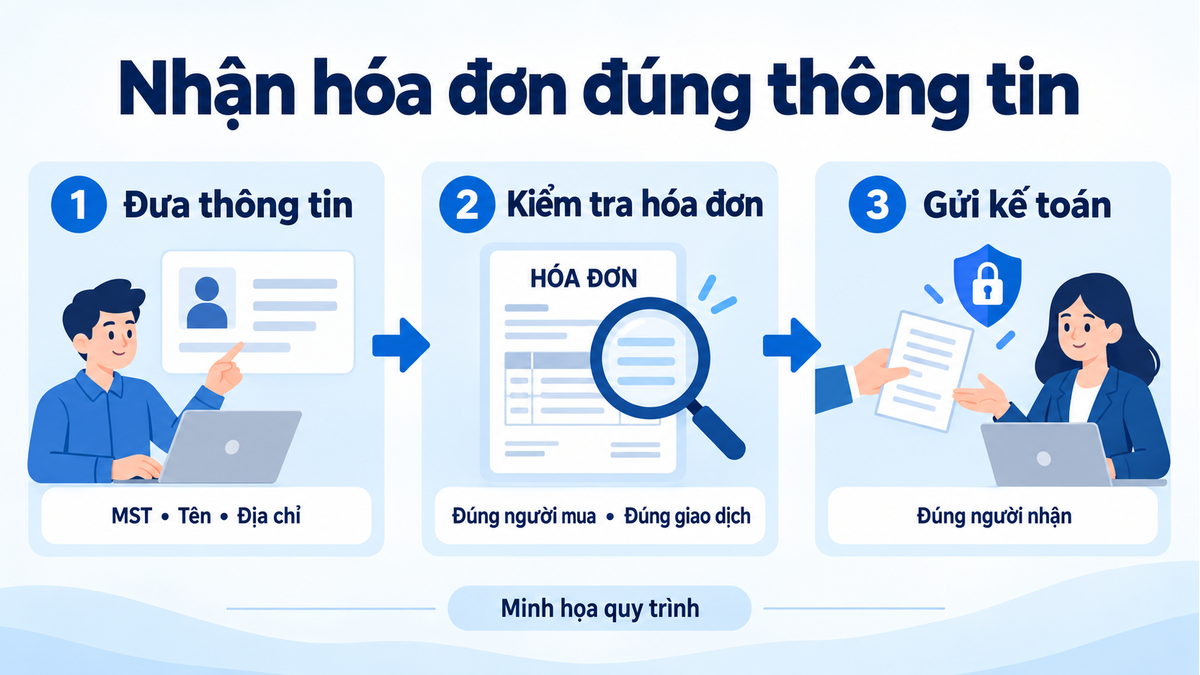
To enable Bizzi Invoice Generation, use Zalo on your phone, access the Mini App, and then create your business's invoice information. When making a purchase, you provide this information to the seller so they can create and send an invoice; then, verify the transaction is correct before forwarding it to the accounting department.
The page that opens the application is called Bizzi Get the Receipt and the QR code. If you're using a computer, scan the code using Zalo on your phone to continue.
What do I need to prepare before opening Bizzi? How much should I get?
Prepare a phone with Zalo, internet connection, and verified invoicing information from the business. The tax identification number, name, and address must match the purchasing entity; do not use personal information instead of business information.
- Log in with the correct Zalo account you use to receive the documents.
- The invoice includes the tax identification number, name, and address of the entity.
- Know who or what accounting department will receive the invoice.
- Verify that the email address for receiving invoices is displayed in your account before giving it to the seller.
Open the Bizzi Mini App and get your invoice on Zalo.
You can access it via the Mini App link or by scanning the QR code using Zalo. Please double-check the app name before accessing it.
- Open the link: access Bizzi Get Invoice on Zalo Using a phone with Zalo.
- If you are viewing on a computer: Open Zalo on your phone, select the QR code scanning function, and then scan the code on the app's launch page.
- Check the name: Verify the name Bizzi Get Invoice before continuing. If you only see the introductory page, select "Open in Zalo" when your device displays this option.

You can also find the app name in the Mini Apps section of Zalo if this section appears on the version you are using. If you can't find it, use the link above before concluding that the app is no longer working.
Create invoice information for the correct business.
Only confirm after the displayed tax identification number, name, and address match the information provided by the business. The fact that the app finds a business doesn't necessarily mean it's the one you need to get an invoice from.
Read the access request before agreeing.
When creating invoice information, read the data the application requests access to and its purpose. Only agree if you understand and accept the request. If you do not want to grant permission, stop the process; when you need support, provide the message content instead of the login code or password.

Enter the tax identification number and verify the returned information.
- Enter the tax identification number: Use the correct business or entity code required for invoicing.
- Perform the search: In the tutorial image, the operation is labeled "Check". Wait for the result before re-entering.
- Read the name and address: Compare this information with the information confirmed by the company. If there is a discrepancy, stop and ask the accountant or person in charge.
- Confirm: Once the information is correct, complete the profile creation process by selecting the option on the screen. Double-check the invoice information and the email address after saving.

For example, if you're on a business trip for Company A but your account still has records for Company B, you need to check and select the correct company before providing the information to the restaurant. Don't use old records just because the app has them pre-filled.
If you need to compare the tax identification number separately, see how. Look up business tax identification numbers on Zalo.. The search results are for verification purposes only and do not replace the confirmation of the purchasing entity in a transaction.
Pin the app so you can reopen it when needed.
If the Mini App menu has a pinning or add function to the home screen, follow the instructions from Zalo and your operating system. The image below illustrates a flow on an iPhone; do not apply the same button placement to all phones. After pinning, try opening the icon to check that you are back in the correct Mini App.

Provide the information to the seller and verify the received invoice.
Provide the seller with accurate invoicing information and delivery address, then compare the invoice with the actual transaction. The seller is the party issuing the invoice; the Mini App supports the steps of receiving, obtaining, and verifying the invoice according to the features displayed in the account.
- Before the seller issues the invoice: Open the created business information, and provide the displayed content or QR code so the seller can receive the correct data.
- Confirm delivery address: Check your email in your account and contact the seller if they have entered a different address.
- Upon receiving the invoice: Open the notification or invoice/email section available in the Mini App. The "VAT Invoice" and "Email" sections in the illustration help distinguish the list of invoices from received emails.
- Compare: Verify the buyer, seller, invoice number and date, goods/services, amount, and related transactions before forwarding to the accounting department.

The email and invoice list may indicate two different processing steps: receiving the email does not automatically prove that the invoice data has been processed. When reporting missing items, record the invoice number, sending date, and recipient address for verification with the seller.
Read the warnings for each piece of information that needs checking.
Open the details to see which content is being verified and which is showing discrepancies. Do not use only green, red, or status labels to conclude that the entire file meets legal requirements, tax deductions, or expense recognition.
- Processing: There is no final result for the current step; wait and double-check before submitting the duplicate document.
- There is a discrepancy: Verify the data fields accurately against the invoice and transaction, then discuss this with the seller or accountant.
- No warnings seen: We still verify that the business is correct, the transaction is correct, and all the necessary business documents are provided.
If there are any errors, send the details to the accounting department and the seller to determine the appropriate course of action. Do not request the creation of a new invoice simply because the application displays a warning; the handling method depends on the type of error and the status of the invoice.
Forward the invoice to the accountant and verify the recipient.
Make sure you select the correct invoice and the correct recipient before sharing it. Check if the recipient has opened the content, instead of just relying on whether the message has been sent.
- Open the invoice that needs to be sent: Compare the invoice number, seller, and value with the transaction.
- Select the sharing function: If your version offers this option, open the invoice you want to send and read the displayed sharing options.
- Check the destination: Choose the correct accountant or work group authorized to receive documents, and avoid sending them to unrelated groups.
- Confirm accessibility: The Mini App link may require the recipient to open Zalo or complete account information. If they are unable to open it, notify the sender and use the document handover channel approved by the business.

When the accountant requests an invoice file, send the exact file or document they need; do not assume that a screenshot is sufficient for the invoice data set. Include the invoice number and payment details so the recipient can link it to the relevant work file.
What to do if you can't open the Mini App or haven't received your bill?
Identify the source of the error as the step where the shared user opens the application, creates information, receives emails, or accesses the data. Do not repeatedly resubmit the entire application until you know which steps are still incomplete.
| Situation | Check beforehand. | How to continue |
|---|---|---|
| I only see the QR code page, I can't access the application. | Are you opening it on your computer or in Zalo on your phone? | Use Zalo's QR code scanning function or open the link on your phone. If the problem persists, write down the message and contact Bizzi. |
| Business information could not be found. | Is the tax identification number correct? Were any characters entered incorrectly, or was the wrong unit selected? | Verify the information provided by the business; do not verify other documents to overlook errors. |
| The seller said they sent the invoice but haven't received it yet. | Recipient email, sending time, invoice number, and processing result. | Please have the seller confirm the address; double-check the recipient's account before requesting a reshipment. |
| The old invoice could not be found. | Filters, accounts, and additional viewing options are available. | Check the instructions in the app or ask support about access limits. Don't conclude that data is lost just because the list isn't displaying. |
| The recipient was unable to open the shared link. | Use the correct account, log in to Zalo, and request access permissions. | The recipient provides feedback on the erroneous content; both parties agree on how to hand over the documents that are permitted for use. |
When contacting support, describe your device, Zalo version, the step you are currently taking, and the error message. Only send necessary information; obscure unrelated customer data or transactions in screenshots.
Frequently Asked Questions about using Bizzi - Get a receipt
What is the @hoadon.me email address used for?
Bizzi's instructions describe @hoadon.me as the address for receiving invoices. Before sending it to the seller, double-check the address displayed in your account; do not try to guess the name or email address.
Is it possible to change the email address for receiving invoices?
If the account has an option to change the address, read the instructions there or confirm with support before making the change. Once the address has been successfully changed, inform the seller of the new address.
Do I need to download a separate app?
The access point for Bizzi Get Invoice is the Mini App on Zalo. If the page prompts you to switch to Zalo, do so on a device with Zalo installed; simply opening the introductory page does not complete the application access process.
If the company information has changed, can the old records still be used?
Verify the invoicing information with your accountant before using it. Only confirm that the data is correct for the unit and transaction; do not continue with old addresses or records just to complete the operation.
Need help launching the Mini App or receiving invoices? Send Bizzi the device name, Zalo version, the step you are currently performing, and the error message. Cover up irrelevant information in the screenshot so that support can accurately diagnose the problem.