


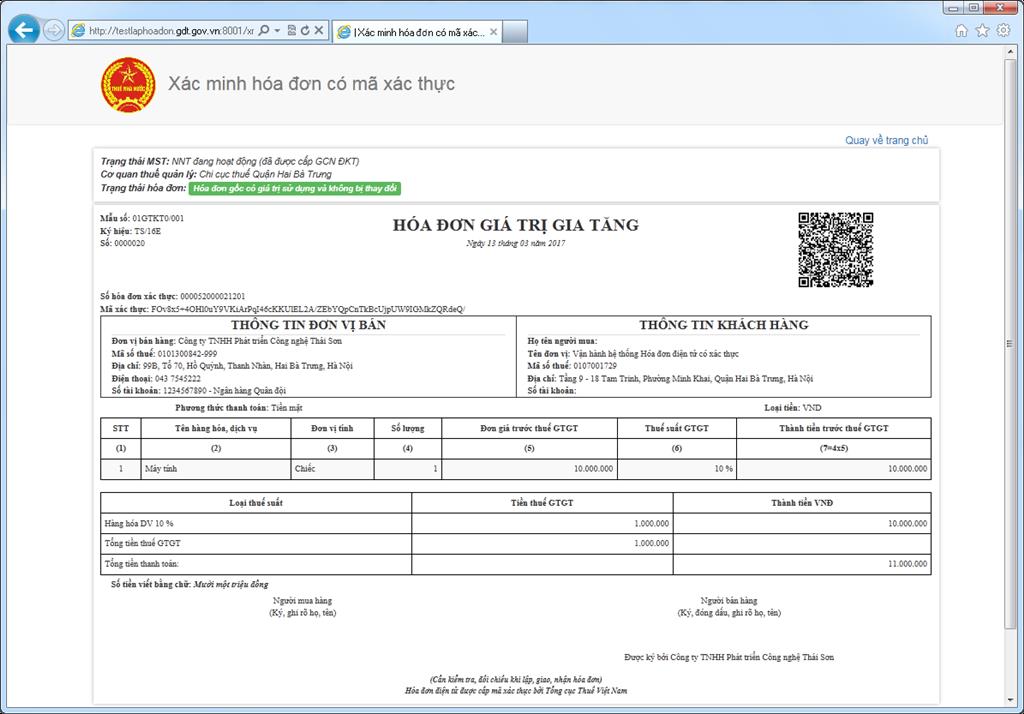
Look up electronic input invoices This involves checking the purchase invoice data on the tax authority's system or the issuing source to confirm the invoice's existence, the matching identification information, and the current status of the invoice being recorded.
In reality, there are three different needs: quickly check an invoice, View the list of purchase invoices of the business. and collect/check multiple invoices in bulk. Choosing the right method from the start will avoid repeatedly entering data or using software when it's not really necessary.
Where can I look up my electronic input invoices?
For electronic invoice data belonging to the tax authority's system, businesses should start from the Tax Department's Electronic Invoice Portal at hoadondientu.gdt.gov.vn. From here, users can look up an invoice using the public function or log in to access data within their assigned account.
| Search location | When to use | Points to note |
|---|---|---|
| Tax Department's Electronic Invoice Portal | Verify invoice data on the tax system; view purchase data when the account has the appropriate permissions. | Public and post-login functions serve different purposes. |
| Website/app of the organization providing e-invoicing solutions. | Look up the invoice issued by the supplier on their system. | You must use the correct link or lookup code provided by the publisher. |
| Internal system / AP software | Businesses need to centralize invoices from multiple sources, perform batch audits, and connect accounting/ERP data. | This is a data and process management layer, not a replacement for the data role of the tax authority. |
If you need to differentiate the concept, role, and scope of documents before searching, please refer to the article. What is an input invoice?.
3 ways to look up electronic input invoices
The three methods below address three different tasks. A single procedure should not be used for all cases.
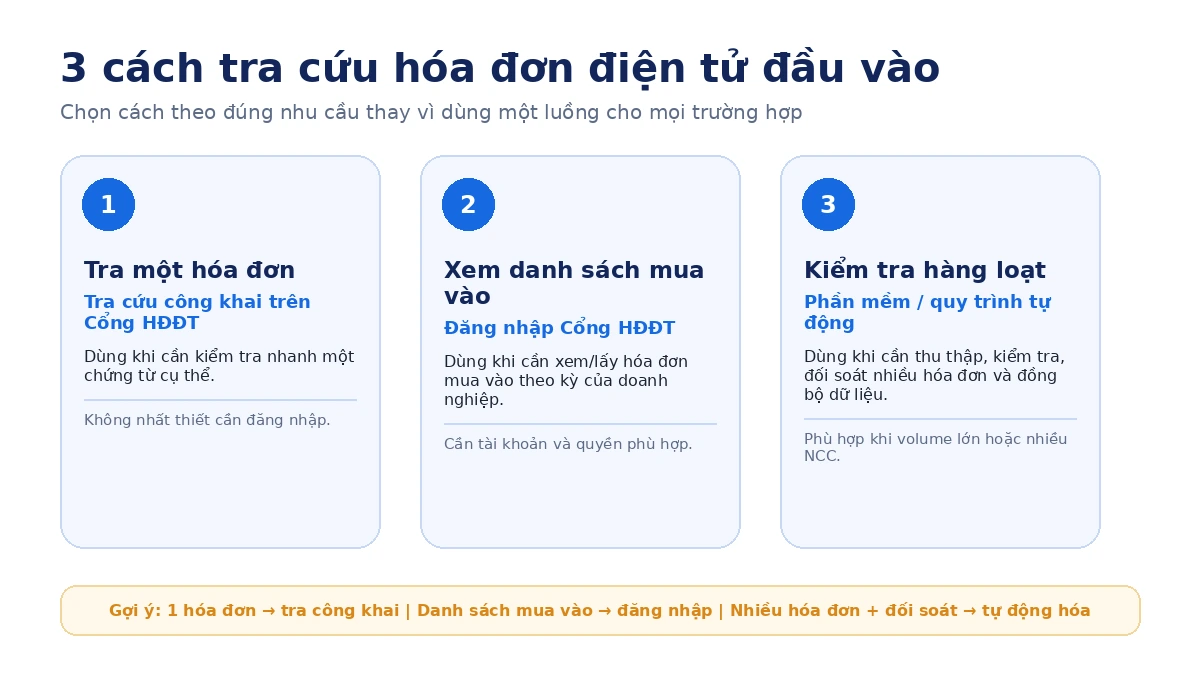
Method 1 — Quickly search for an invoice on the Electronic Invoice Portal
This is suitable when accountants need to verify a specific invoice before proceeding to review records, record transactions, or move on to the transaction reconciliation step.
Method 2 — Log in to view the list of purchase invoices
This is useful when businesses need to review invoices on a monthly/quarterly basis, compare purchase lists, or find invoices that suppliers have issued to the business.
Method 3 — Collect and check multiple invoices in bulk
Suitable for situations with a large volume of invoices, documents coming from multiple emails/suppliers/branches, or when accountants need to detect duplicates, alert on unusual data, and send results to the AP/ERP process.
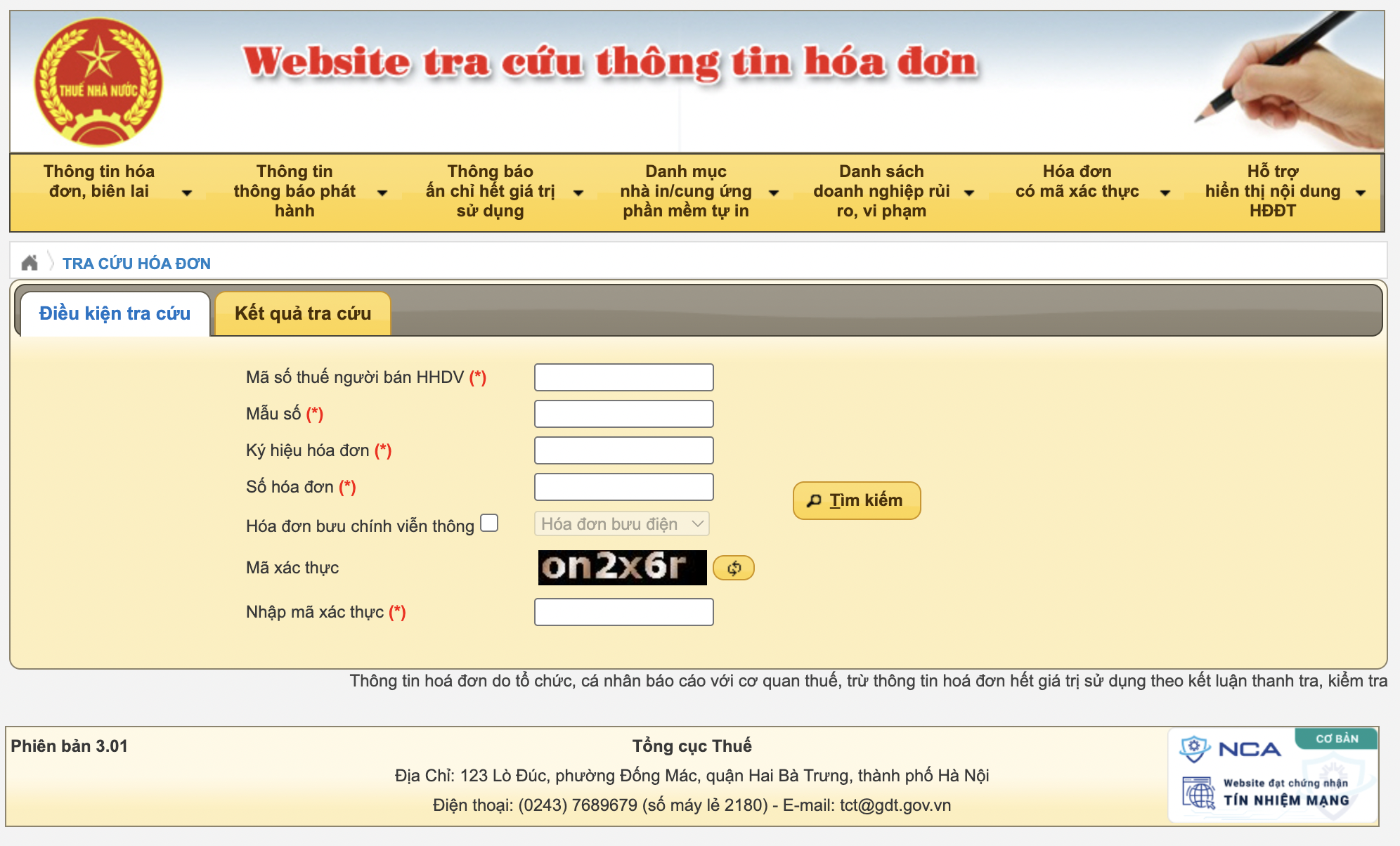
How to look up an invoice on the Electronic Invoice Portal
To check a specific invoice, access the invoice lookup function on the e-invoice portal and fill in the fields requested by the system. The interface may change with each upgrade, so it's advisable to read the field labels on the gate instead of relying entirely on old guide images.
- Access the Electronic Invoice Portal: Open the invoice lookup page.
- Choose the appropriate search function: Use public lookup when checking only one invoice.
- Enter identification information: The system may require the seller's tax identification number, invoice type, symbol, invoice number, and authentication code, or other related fields.
- Perform a search: Check the returned results instead of just comparing a single field.
- Save the necessary information: If the invoice needs to proceed to the accounting/AP process, save the relevant XML/document according to internal procedures.
How to view and retrieve a list of purchase invoices for a business.
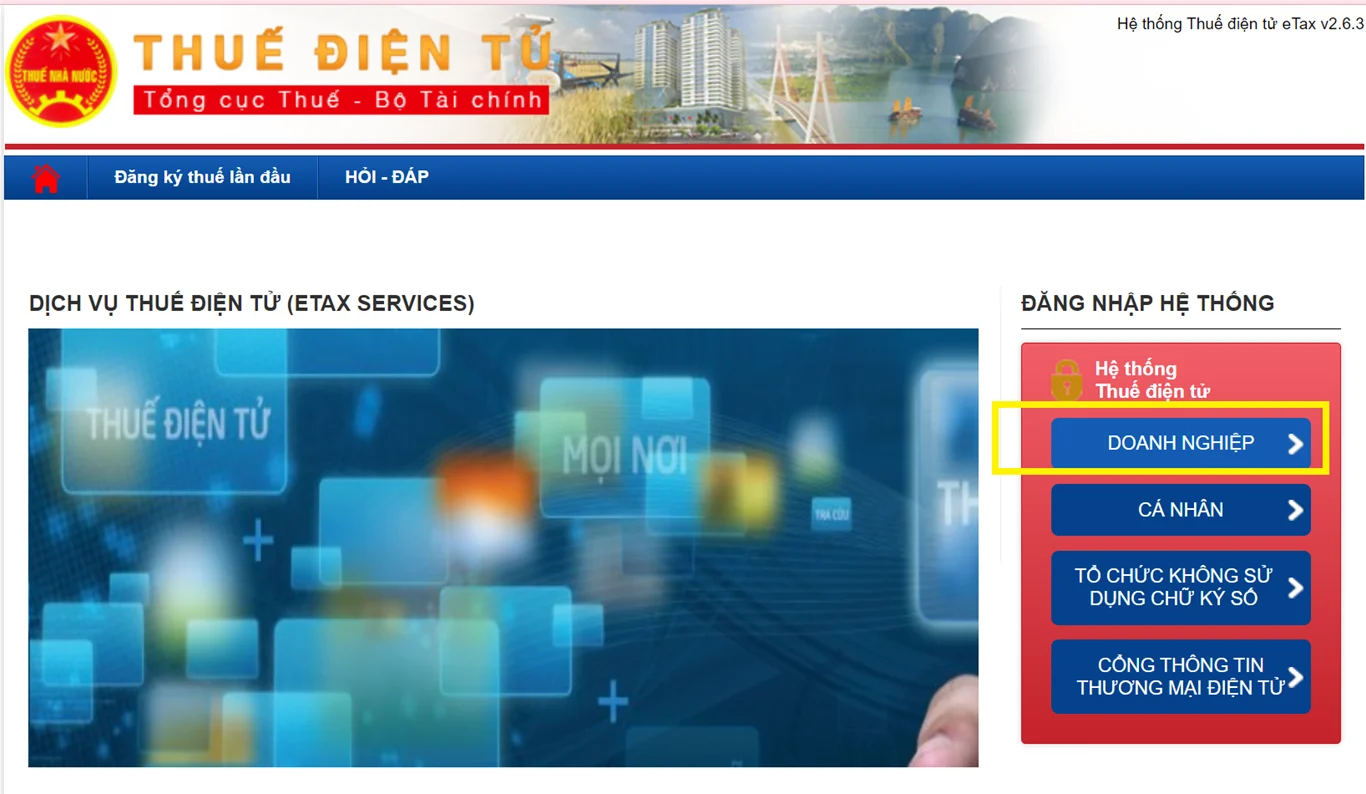
If the goal is to view all purchase invoices for a period, businesses need to log in to the Electronic Invoice Portal with an account that has the appropriate permissions and then use the purchase invoice lookup function.
- Access the Electronic Invoice Portal.
- Log in using your authorized business account.
- Enter the area Lookup and select the function related to purchase invoices.
- Select the time period to check; add status filters or other information if the interface supports it.
- Perform a search and review the list of results.
- Export/load data according to the system's provided functions and save it according to internal procedures.
What do the results of the electronic invoice lookup show?
According to Circular 91/2026/TT-BTC, the electronic invoice information provided by the tax authority includes the invoice contents as prescribed and electronic invoice status. Therefore, buyers should use the lookup results to determine how the data is being recorded by the system before moving on to the next verification step.
| Results/phenomena | Understanding safety | Next step |
|---|---|---|
| Invoice found, information matches. | The system has data that matches the information entered. | Further review the invoice content, XML/signatures when necessary, and business documents. |
| Not found | There is insufficient evidence to conclude that the invoice does not exist or is invalid. | Double-check the data entry, lookup function, data timing, and confirm with the seller. |
| There is a regulating relationship. | The invoice has related adjustment documents; both the original invoice and the adjustment invoice need to be reviewed. | Determine the adjustments to be made and handle the accounting/tax matters according to the specific circumstances. |
| There is a replacement invoice. | The seller issued a new invoice to replace the incorrect one in accordance with current legal procedures. | Determine the relationship between the two invoices and use the correct set of documents for the next transaction. |
| The buyer/seller information is incorrect. | It is necessary to identify the type of error; not all errors can be handled in the same way. | Compare with the seller and check the handling procedure according to Circular 91/2026/TT-BTC. |
How are business process lookups, validation checks, and comparisons different?
These are three different layers of control. Verify data on the system; check the validity and evaluate the content/documents; and compare the actual transaction confirmation with the purchase records.
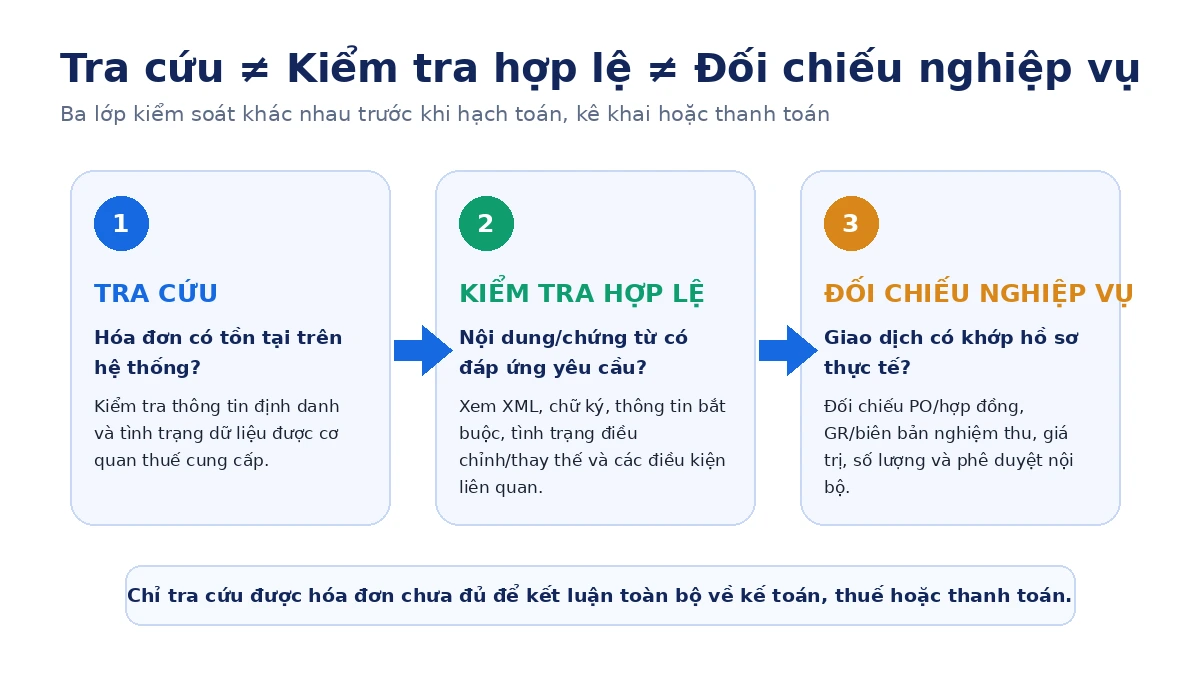
| Control layer | Question | Example data |
|---|---|---|
| Lookup | Has the invoice appeared, and how is its status being recorded in the system? | Tax identification number (MST), symbol, invoice number, data status. |
| Validity check | Do the contents and supporting documents meet the requirements applicable to this case? | XML, signatures, required fields, modifier/replacement relationships. |
| Business comparison | Does the invoice match the order placed, received, and approved? | Purchase Order (PO)/contract, Grand Acceptance Report (GR), Invoice, limit/approval. |
If a more in-depth assessment of the second layer is needed, see the guide. How to check if an electronic invoice is valid.
If the business needs to verify purchases before payment, please refer to the following. 3-way matching PO – GR – Invoice.
How should we understand adjustment invoices, replacement invoices, and invoices with incorrect information?
"Adjustment" and "replacement" should not be considered the same state. From July 1st, 2026, Article 10 of Circular 91/2026/TT-BTC stipulates how to handle incorrectly issued invoices according to different error categories.
| General case | Possible solutions may arise. | What should buyers do when searching for information? |
|---|---|---|
| Some errors do not affect the tax identification number, amount, tax rate, tax amount, or goods. | The seller may notify the seller of an error without having to reissue the invoice, subject to the regulations. | Check the relevant notices and records instead of assuming a new invoice is required. |
| Incorrect tax identification number (MST), goods/specifications, amount, tax rate, tax amount, or other mandatory information falling under the prescribed category. | The seller may choose to adjust or replace the item in accordance with Article 10 of Circular 91. | Clearly identify which method the seller has chosen and correctly interpret the relationship between the old and new documents. |
This article only explains how to read the lookup results. For specific error handling, please refer to Decree 254 and Circular 91 on electronic invoices.
What should I do if I can't find the invoice in the system?
The fact that no results were found should not be immediately interpreted as the invoice not existing or being invalid. Please rule out data errors and lookup function malfunctions first.
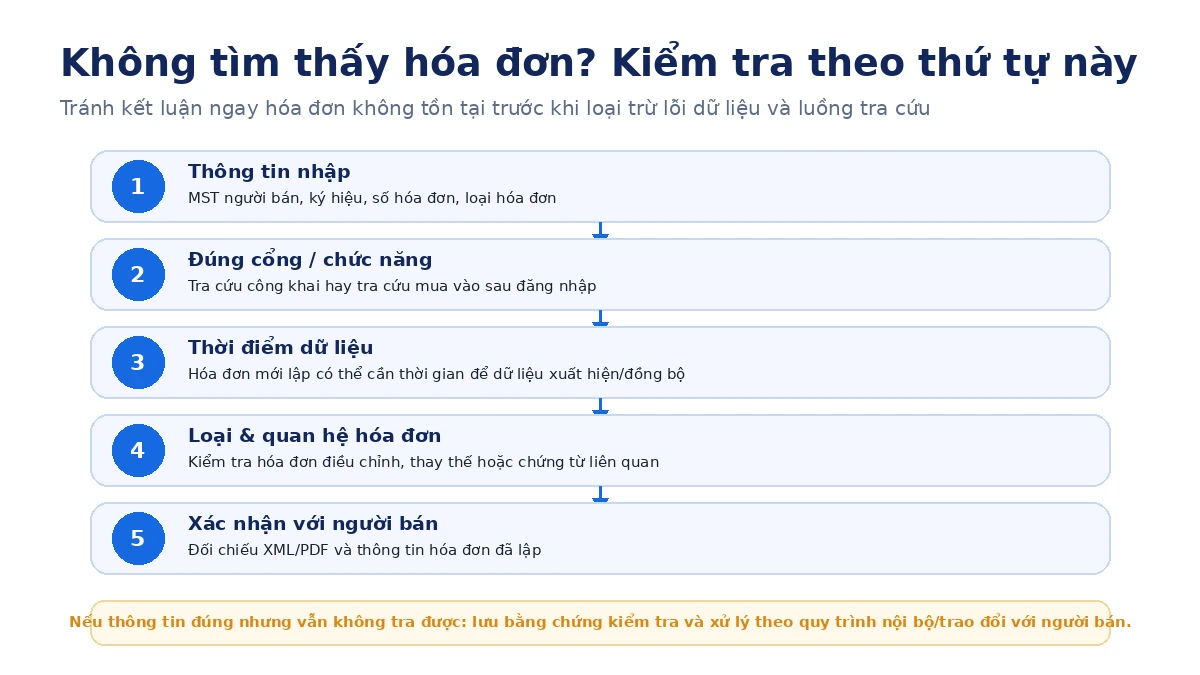
- Check the information you have entered: Seller's tax identification number (MST), invoice type, symbol, invoice number, and other system-required fields.
- Check for proper functionality: Publicly look up a different invoice than the purchase lookup area after logging in.
- Check the time: With newly generated invoices, the data transmission/recording process on the system needs to be considered.
- Check the relationship between the documents: The invoice may have undergone adjustments/replacements or may have related documents that need to be reviewed.
- Confirm with the seller: Compare the XML/PDF with the information that the seller has created/sent.
- Leave a record of the process: If the invoice affects accounting, payment, or reporting, retain the verification results and communicate the relevant information.
What is the role of XML files when looking up electronic invoices?
XML is a structured data file for electronic invoices and is very useful when accountants need to read, store, or reconcile data fields in a machine-readable format. PDFs are primarily convenient for viewing; XML, on the other hand, allows software systems to read and process more detailed data.
When an invoice is unreachable or the displayed data differs, the XML provided by the seller serves as a reference source alongside information on the e-invoice portal and transaction records. However, some XML files do not automatically answer all questions regarding accounting or tax conditions.
When does a business need to look up input invoices in bulk?
Businesses should evaluate their batch processes when the bottleneck is no longer "finding an invoice," but rather collecting enough invoices, ensuring consistency, and handling exceptions in large quantities.
There is no threshold for "how many invoices require software." The decision should be based on processing time, number of data sources, exception rate, duplicate control capabilities, and actual integration requirements.
When the problem has expanded from "research" to receiving, checking, approving, accounting, paying, and storing data, the design should follow these guidelines. input invoice management process instead of continuing to add more checklists manually.
Should I look it up manually, log in to the Tax Portal, or use software?
The three options are not mutually exclusive. Businesses can use public lookup for individual situations, the e-invoice portal to view purchase data, and software to organize large-scale verification processes.
| Criteria | Look up an invoice | View the list of buy orders on the Electronic Contract Portal. | Mass automation |
|---|---|---|---|
| Target | Quickly check the specific documents. | Review purchase invoices by period. | Data collection + verification + reconciliation + exception handling. |
| Log in | It doesn't necessarily have to be for public use. | Appropriate account/permissions are required. | Depending on system configuration and data connection. |
| Mass | Short. | By period/company. | Suitable for high volume or multiple sources. |
| Duplicate/Abnormal Detection | Manual inspection. | Further action is needed. | Rules/alerts can be set up. |
| Compare PO/GR | Are not. | Not the main objective. | It can be integrated into the AP process. |
| ERP/accounting | Manual data import/transfer. | Load/export and then process further depending on the function. | It is possible to connect and synchronize according to the system design. |
If your business is evaluating how to transition from manual audits to a data-centric workflow, see more. Automated process for handling input invoices.
From invoice lookup to automated input invoice control.
For businesses with a large volume of invoices, lookup is just one step in the AP process. After collecting invoices, accountants must also check the data, detect duplicates/risks, compare them with purchase documents, and transfer the results to the accounting system or ERP.
If the bottleneck lies in the step of transferring post-audit data to the financial system, a separate solution may be considered. Integrating Bizz with ERP To separate the system connectivity problem from the lookup problem.
FAQ regarding looking up electronic input invoices
Is it possible to look up electronic input invoices without logging in?
A specific invoice can be searched using the public function on the E-Invoice Portal based on the system's requested information. However, to view the list of purchase invoices belonging to a business, users usually need to log in with an account that has appropriate permissions.
Where can I view my business's input invoices?
Access the Tax Department's Electronic Invoice Portal at hoadondientu.gdt.gov.vn, log in, and use the function to search for purchase invoices according to your account's permissions.
If the invoice cannot be found in the tax system, does that mean the invoice is invalid?
It's too early to jump to conclusions. The input information needs to be checked again, ensuring the correct lookup function, data timing, adjustment/replacement relationships, and confirmation with the seller. Validity also needs to be assessed at other levels besides the lookup process.
Are adjustment invoices and replacement invoices the same thing?
No. These are two different ways of handling certain types of errors according to Circular 91/2026/TT-BTC. When checking, the buyer needs to clearly identify which method the seller used and the relationship between the new document and the previously issued invoice.
Is the XML file important when verifying electronic invoices?
Yes. XML is a structured data file that helps software and accountants read/match invoice fields. However, having XML does not automatically qualify it for all accounting or tax purposes.
Is it possible to look up invoices in bulk directly on the Tax Portal?
Logged-in users can access the invoice list within the functionalities provided by the system. If the business requires additional multi-source data collection, duplicate checking, risk alerts, PO/GR reconciliation, and ERP synchronization, then that's a broader process automation solution.