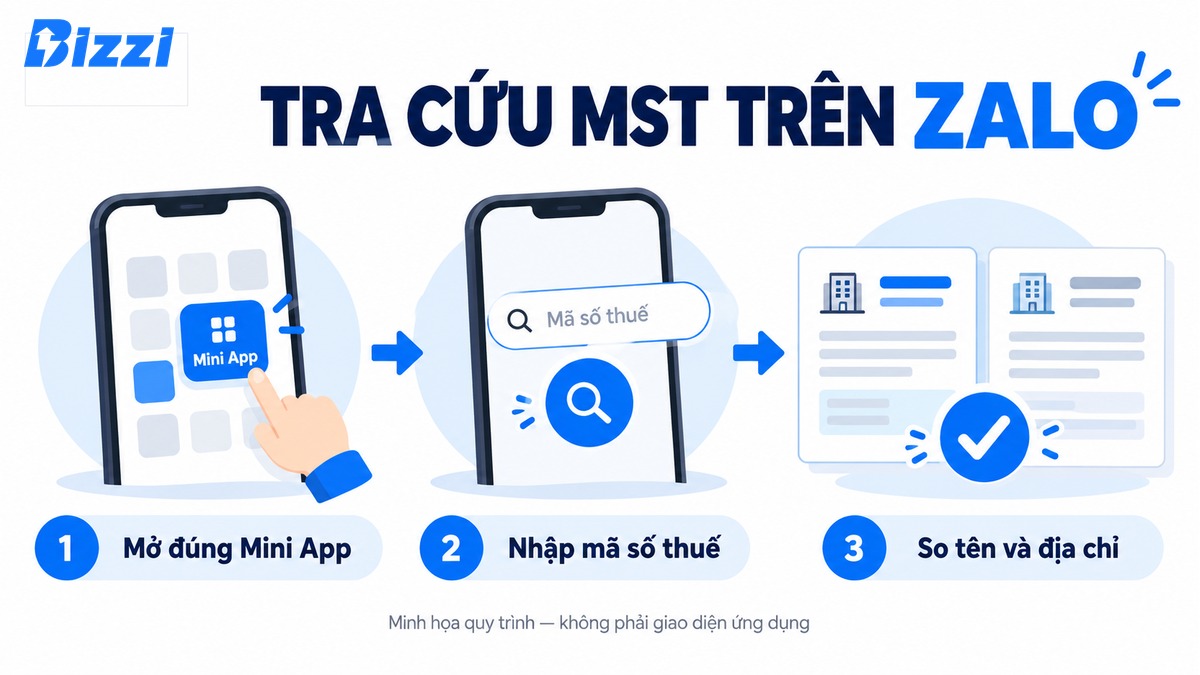
To look up business information on Zalo using Bizzi Get Invoice, open the Mini App, enter the tax code, and then compare the name and address returned with the business information you provided. Only confirm invoice information when the data matches. If you don't know the tax identification number, you need to find it first; this guide does not default to the Mini App supporting reverse lookup by company name.
The method below focuses on verifying buyer information to obtain an invoice. When checking taxpayer status or cross-referencing other information, use the appropriate lookup source instead of inferring from the Mini App's findings of a business.
What information should I prepare before searching on Zalo?
You need a phone with Zalo, an internet connection, and the correct tax identification number of the entity that needs to issue the invoice. Having the name and address confirmed by the business will help detect incorrect entity selection before providing the information to the seller.
- Tax code: Copy from company records or submitted accounting information, avoid re-entering from memory.
- Name and address for billing: Use information that has been verified by the business; double-check if the company has recently changed its address.
- Purchasing unit: Clearly identify the company, branch, or unit conducting the transaction; do not choose a name that is too similar.
- Zalo account: Open it using the account you intend to use to store and receive work documents.
If only the company name is available, see Ways to look up a business tax identification number To find the correct code first, that article guides you through broader lookup channels; the steps below are specific to the operation of retrieving invoices via Zalo in Bizzi.
How to look up a business tax code using Bizzi and get invoices on Zalo.
The process involves opening the Mini App, reading the access request, entering the tax identification number, and verifying the results. The images are from the Bizzi guide; the layout and button names may differ on the version you are using. Please read the actual content on your phone before granting permission or confirming.
Step 1. Open the correct Bizzi Mini App and get your receipt.
- Open Bizzi Get Invoice on Zalo Using a phone with Zalo installed.
- If you're viewing on a computer, use Zalo on your phone to scan the QR code on the app's launch page.
- Check the Mini App name before proceeding. If Zalo has a Mini App search function, you can also search for “Bizzi Get Invoice” there.
The page opened in the browser may only display the app name and QR code. You need to continue within Zalo on your phone to perform the operation; seeing the introductory page does not mean you have entered the search screen.

Step 2. Read the access request before generating invoice information.
In the published instructions, users select "Create invoice information" and then view the request to access Zalo account data. When this screen appears, carefully read the requested data and its purpose before deciding to grant permission.
- Verify that the name of the application requesting access is correct.
- Only proceed when you understand and accept the content displayed.
- If you don't want to grant permission yet, stop the process and choose a different channel to send your business information to the seller.
When requesting support, you can send error messages that have masked private data. Do not send your Zalo password, login code, or verification code to the support person.
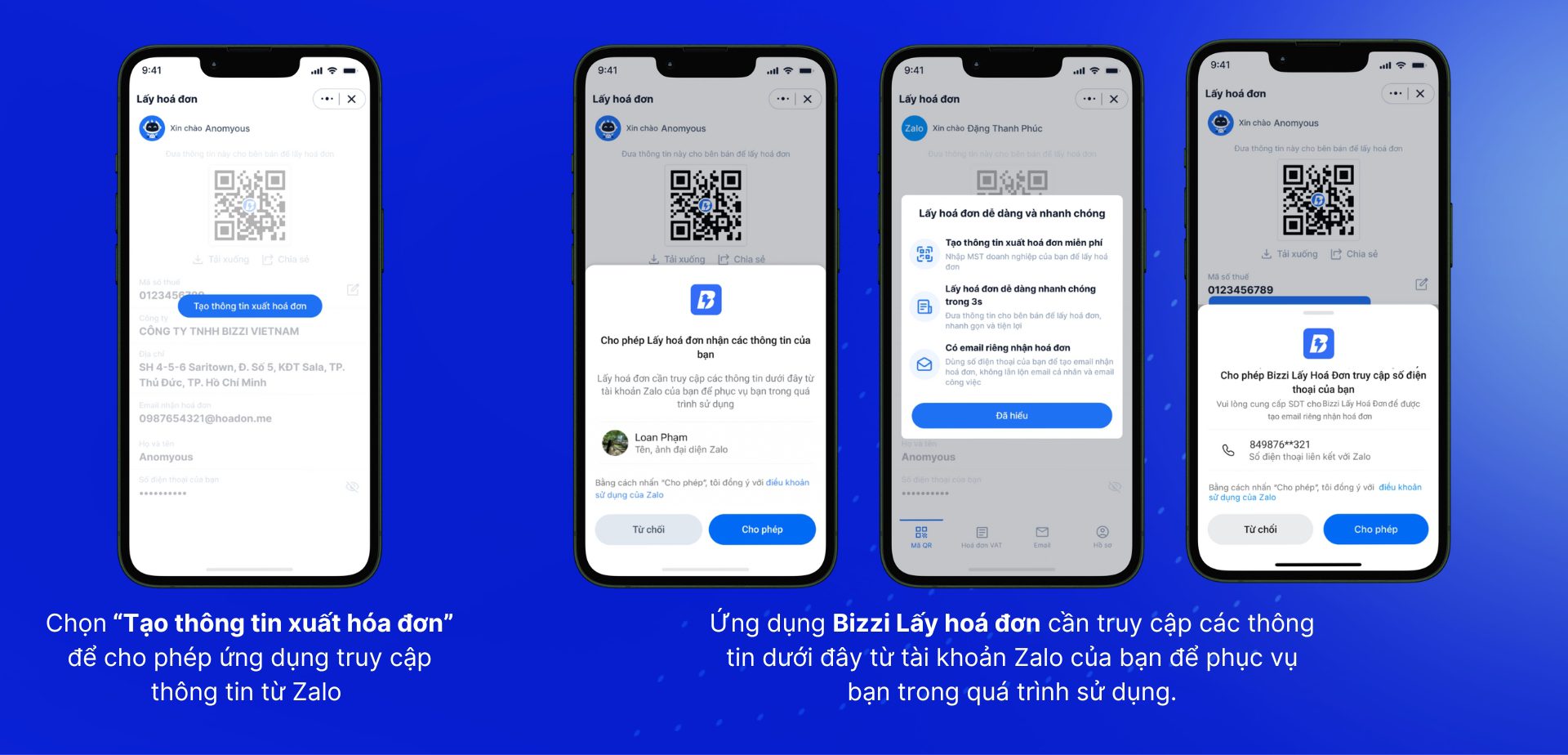
Step 3. Enter the tax identification number and perform the verification.
When the tax code field appears, enter or paste the correct code of the entity for which you want to obtain the invoice. In the instructions, the button labeled "Check" is displayed. Wait for the results of the previous search before re-entering the code.
- Compare the entered code string with the accounting information provided, especially when copying from a text message.
- Perform a search using the options selected on the screen.
- Read the business name and address provided; don't just look at the results and confirm.
- If the results are missing or differ from the information you have, stop to check the cause before saving.
For example, if you make a purchase for a branch but the result shows the head office information, you need to ask the person in charge which unit is required to be listed on the invoice. Do not replace the branch code with the head office code just to get the application to return the correct result.

Step 4. Confirm the correct business and check the saved information.
Once the data matches the confirmed business information, complete the save step as selected on the screen. Then reopen the file to check the correct entity and invoice recipient information before sending it to the seller.
If your account still contains information from your previous company or has multiple branches, select the correct profile for your current transaction. A profile that has been successfully used before will not automatically be suitable for your next purchase.
Checking information and verifying the buyer are two different things. The search results help you cross-reference data; however, the choice of which entity should be named on the invoice still depends on the transaction and the business's instructions.
What information should be cross-checked before issuing an invoice?
Check the three main fields along with the information on the receipt. If there are discrepancies, clarify them with the accountant or person in charge before the seller issues the invoice; this will make it easier to handle the errors later.
| Information | Comparison method | Before matching |
|---|---|---|
| Tax code | Compare the entire chain with the unit's records that need to be invoiced. | Check for missing or extra characters, or incorrect units. |
| Company's name | Read the full name to distinguish between companies with similar names. | Ask the information provider again, don't choose based on familiar names. |
| Address | Compared to the information on the business invoice that is currently being verified. | Check if the data is outdated or if the unit has recently changed its address. |
| Address for receiving invoices | Check the address displayed in the records and the recipient's information. | Agree with the channel accountant on the receipt before sending it to the seller. |
When further taxpayer information needs to be verified, it can be cross-referenced at Taxpayer information lookup portal of the tax authority. Do not use the tax identification number alone to conclude that a business is risk-free or that a specific invoice meets all legal requirements.
What to do if the Mini App won't open or the search doesn't yield results?
Identify where the problem lies: opening Zalo, accessing the application, access permissions, or business data. The troubleshooting steps differ, so there's no need to re-enter all the information from scratch.
| Situation | Check beforehand. | Next step |
|---|---|---|
| I only see the page with the QR code. | Are you opening it using a computer browser or Zalo on your phone? | Use Zalo to scan the QR code or reopen the link using your phone. |
| Mini App name not found | Are the keywords and search terms correct? | Try linking to open the application in step 1; if it still fails, record the message. |
| Unwilling to grant permission | Are the access request and its purpose appropriate? | Stop the process; discuss how to send invoicing information through the approved business channel. |
| No MST results available. | Is the entered code correct in terms of units, and are there any missing or extra characters? | Comparing records and checking other sources does not immediately imply that the business does not exist. |
| Other name or address information available | Are you using outdated profiles or have you selected the wrong agency? | Send the specific difference to the accountant for confirmation of the information needed. |
| The record could not be saved or reopened. | Connect, your Zalo account, and notifications will appear on the screen. | Acknowledged the error in concealing private information; use an alternative channel to avoid delays in receiving the invoice. |
If you need to submit a support request, describe the device, the current action, and the message you want to send. The screenshot should only show the faulty part being checked, obscuring phone numbers, private email addresses, and unrelated data.
Use the information you just retrieved to obtain and deliver the invoice.
After verifying the correct business, provide the invoicing information to the seller and check that they have received the correct information. The image below shows how to present the information as per the published Bizzi guidelines.

When the invoice arrives, cross-check the invoice number, seller, buyer, and transaction details before forwarding it to accounting. If the application displays a warning, open the details to identify the incorrect data field and discuss it with accounting and the seller; do not request the creation of a new invoice based solely on color or status label.
The section on receiving, reading alerts, and sharing documents is presented in Bizzi user manual. Get a receipt.. When you need to compare the invoice with the source from the tax authority, see How to look up electronic invoices; This is different from looking up the buyer's tax identification number.
Frequently Asked Questions when looking up tax identification numbers on Zalo
If I don't know the tax identification number, can I still search for the company by its name in the Mini App?
The Bizzi guide only describes the steps for entering the tax identification number to retrieve the name and address; this is insufficient to confirm that the Mini App supports searching by company name. Please find the correct code through your business records or other lookup channels before entering it into the application.
Is it possible to perform all operations on Zalo using a computer?
The app launch page may display a QR code to continue on your phone. This guide uses Zalo on a mobile phone; it does not default to the computer workflow like the mobile Mini App.
Finding the tax identification number means the information on the invoice is correct, right?
Not yet. You need to verify the name, address, and the correct purchasing entity for the transaction. If there are multiple companies or branches, ask the person in charge before confirming the documents.
Is there a fee for looking up tax identification numbers on Zalo?
Check the fee policy displayed on the app or ask Bizzi before using any feature that requires payment. Read the terms and conditions carefully before confirming.
Does the "Valid" label replace an accountant checking an invoice?
No. The label represents the result of a check performed by the application. Accountants still need to reconcile transactions, invoice data, and related documents; they cannot infer deduction conditions or expense recognition from a single status.
Prepare the tax identification number, name, and address that have been verified by the business. If the application is not yet open, use the troubleshooting table above to identify the step that is causing the problem.