


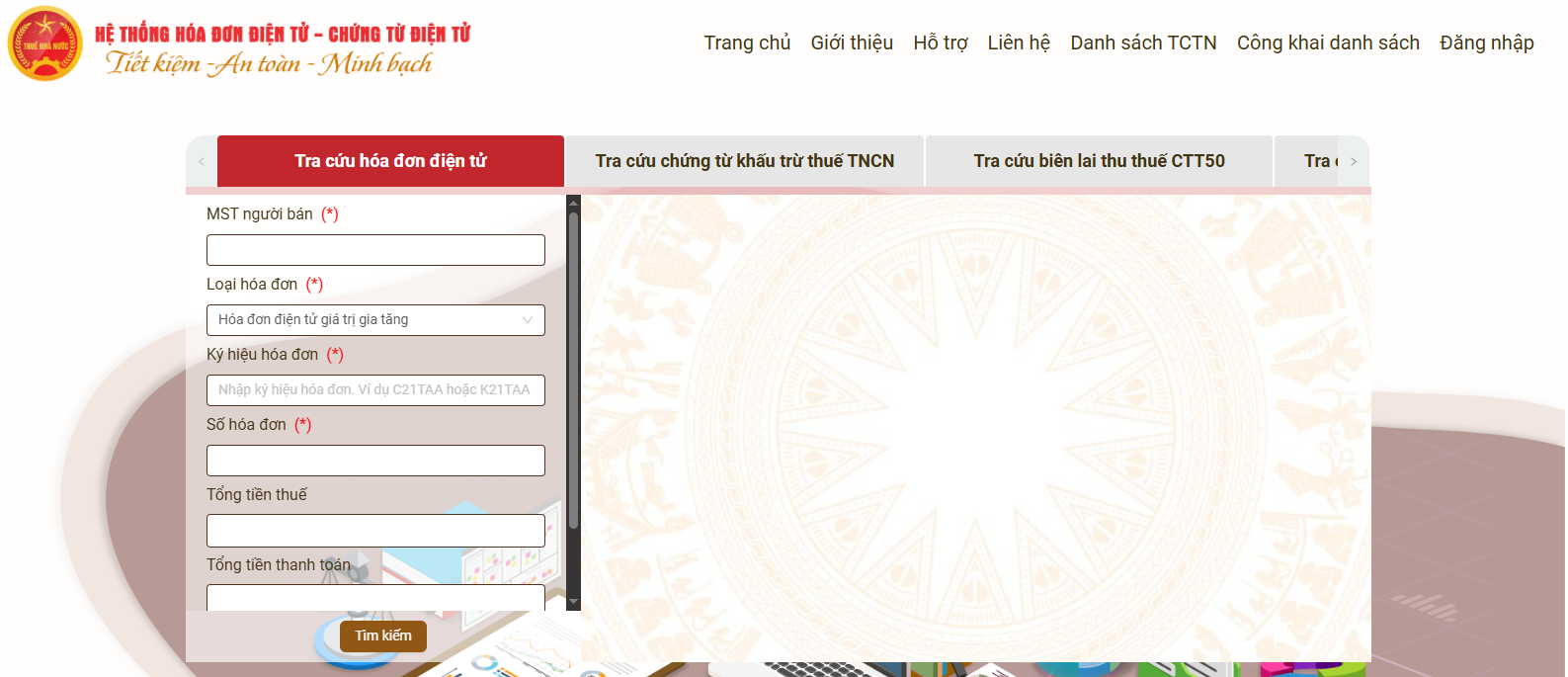
Checking electronic invoices through the General Department of Taxation helps buyers and businesses verify whether an invoice has been recorded in the system, whether the information matches, and the invoice status. This article by Bizzi provides step-by-step instructions for checking invoices. hoadondientu.gdt.gov.vn, This includes quick lookup without logging in, lookup of purchase/sales invoices when logged in, and XML file verification. For businesses with many invoices, the article also analyzes when to use software for automatic lookup and reconciliation.
How can I look up my electronic invoice?
There are two main options: Look it up directly on hoadondientu.gdt.gov.vn Alternatively, use invoice processing software. Users needing to verify an invoice should prioritize the tax authority's system; businesses processing large volumes should consider software for collecting, reading XML, storing, and reconciling data.
Look up invoices directly on the electronic invoice system.
This is the appropriate option when the user needs it:
- Checking a bill quickly.
- Look up input invoices or purchase invoices.
- Look up sales invoices.
- Check invoice data by time period.
- Compare the invoice information with the company's existing data.
Depending on their needs, users can:
- Quick search without logging in When you need to check an invoice.
- Log in to your business account. When you need to look up purchase/sales invoices by list or by period.
- Check the XML file. When it is necessary to read the original structured data of an electronic invoice.
Use invoice processing software.
The software is more suitable when the business:
- Receive invoices from multiple suppliers.
- Handling a large volume of input invoices.
- Regularly reading XML/PDF files is necessary.
- We want to store data centrally.
- The invoice needs to be compared with the purchase order (PO), contract, delivery note, or internal document.
- It is necessary to connect invoice data with the proposal, approval, expense, and payment processes.
If you only need to check a single invoice or view a list of purchase invoices, you should start on the tax authority's electronic invoicing system.
What information do I need to prepare before conducting a search?
Before searching, users should prepare. Invoice type, symbol, invoice number, total payment amount, and XML file if available.. Businesses wishing to search for purchase or sales invoices by list need to have an account to log into the system.
| Information | Where to get it? | When to use | Common errors |
| Invoice type | Invoice information section | Quick search | Choose the wrong type |
| Invoice symbol | Near the invoice number | Quick search | Missing or incorrect characters |
| Some bills | On the invoice representation | All cases | Incorrect number entered, or extra zeros entered. |
| Total payment | Total payment line | Quick search | Confused with pre-tax amount. |
| Business account | Information provided for login | Look up buy/sell orders | Incorrect password or verification code |
| XML file | Email or publishing system | Read invoice data | Using the wrong PDF or a modified file. |
Some notes before entering data
- Check correctly invoice symbol in the representation.
- Distinguish total payment with the cost of goods, the price before tax, or the tax amount.
- Do not add periods, commas, or separator characters unless the interface requires them.
- If using XML files, they should be retained. original XML file Provided by the seller or the issuing system.
- Verify the domain name is correct before entering your account information.
Once all the necessary data is prepared, users can choose to perform a quick lookup, log in to view the list of invoices, or check the data using an XML file.
How to look up electronic invoices on hoadondientu.gdt.gov.vn
Above hoadondientu.gdt.gov.vn, Users can quickly search without logging in, log in to view purchase/sales invoices, or check data using XML files. The method should be chosen based on the level of information needed.
This is an electronic invoicing system belonging to the tax authority. Users should verify the correct domain name before entering data or account information.
Note: Function names, button labels, and interface layouts may be updated from time to time. When publishing tutorials with screenshots, please verify the actual interface at the time of updating.
Quickly look up invoices without logging in.
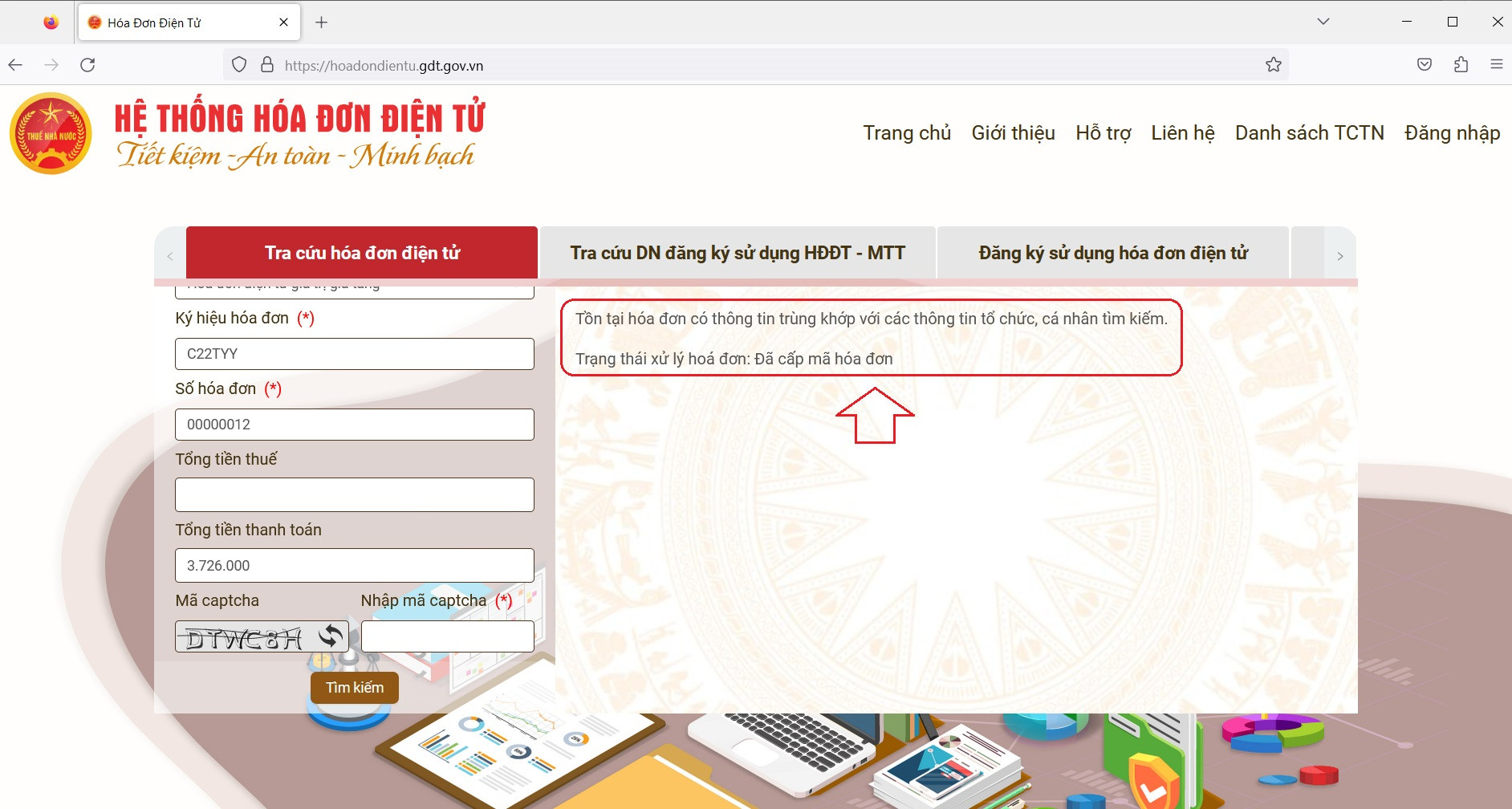
Login-free lookup is suitable when users want to quickly check if an invoice has been recorded in the system. Users enter the invoice type, symbol, invoice number, total payment amount, and confirmation code, then select search.
Steps to take
Step 1: Access hoadondientu.gdt.gov.vn.
Verify the domain name is correct before entering billing information.
Step 2: Select the electronic invoice lookup function.
Function names may vary depending on the system interface at the time of access.
Step 3: Enter the required information fields:
- Invoice type.
- Invoice symbol.
- Invoice number.
- Total payment amount.
- Verification code or CAPTCHA.
Step 4: Select “Search”.
Step 5: Compare the results with the existing invoice.
Users should check at least:
- Seller's name and tax identification number.
- Buyer's name and tax identification number.
- Invoice number.
- Invoice symbol.
- Date established.
- The value of goods and services.
- Taxes and total payment amount.
- The relevant status if the system displays it.
When is it appropriate to perform a lookup without logging in?
- Buyers need to quickly check an invoice.
- Accountants need to verify the underlying data.
- The user does not have a login account.
- Users do not need to download the list of invoices by period.
Common errors when performing quick searches
Incorrect symbol entered: Invoice symbols can contain many easily confused characters. Users should enter the entire string exactly as it appears on the invoice.
Incorrect total entered: Users may confuse the total payment amount with the price before tax or the price of the goods.
Invalid CAPTCHA: Some characters have similar appearances. Users need to re-enter the verification code if the system does not accept it.
Invoice not found: The result of "no results found" is not enough to conclude that the invoice is fake. Users need to double-check the entered information, the issuance date, and verify further with the seller if necessary.
Login-free lookup is suitable when a user needs to quickly verify an invoice, not when a business needs to manage all incoming invoice data according to a process.
If businesses need to view a list of input invoices, sales invoices, or filter by time period, they should log into the system.
Log in to look up purchase and sales invoices.
Businesses wishing to look up detailed purchase or sales invoices need to log into the system, select the invoice lookup function, set the time period and status to be checked, and then open the list of results.
Steps to take
Step 1: Access hoadondientu.gdt.gov.vn.
Step 2: Select the "Login" function.
Step 3: Enter your account information and verification code.
Step 4: Access the "Search" area.
Step 5: Select the function to look up electronic purchase or sales invoices.
Step 6: Set the necessary filter conditions.For example:
- A period of time.
- Invoice date.
- Invoice status.
- Test results.
- Invoice type if the system supports this filter.
Step 7: Select “Search”.
Step 8: View the list of results.
Step 9: Open the invoice you need to check.
Step 10: View, download, or export data using the functions supported by the system at the time of the search.
When should you use this lookup method?
How to look up electronic purchase invoices when logged in, suitable for businesses when needed:
- Look up input invoices by month or quarter.
- Check the list of purchase invoices.
- Compare the data with the accounting records.
- View the status of multiple invoices.
- Download the data for further testing.
- Identify which invoices require further processing or verification.
For businesses with a large number of incoming invoices, loading and checking each invoice individually can still generate a significant workload. The automation aspect will be discussed later.
Once the original data file has been received from the seller, the accountant can further verify the invoice using the XML file.
Look up and verify invoices using XML files.
The XML file contains the structured data of the electronic invoice. Users can use the XML reader function on the system, upload the original file, and check the displayed information fields.
Steps to verify an invoice using XML
Step 1: Save the original XML file. from email or the billing system.
Step 2: Access hoadondientu.gdt.gov.vn.
Step 3: Select the XML invoice reading function. If the system provides this functionality at the time of access.
Step 4: Select the XML file on the device.
Step 5: Upload the file to the system.
Step 6: Check the displayed information.
Step 7: Compare with the PDF and related documents, if any.
What is the difference between XML and PDF?
| Criteria | XML file | PDF file |
| Nature | Structured data | The version for reading |
| The system can read data. | Have | More restrictive |
| Role | The original data needs to be saved and verified. | Convenient version to view |
| When checking | Check the data fields. | Compare the ways of expressing |
| Should it be edited? | Are not | Do not edit the content. |
Notes when checking XML files
- Do not edit the content of the XML file.
- Do not convert PDF to XML and then treat it as the original XML file.
- If the XML file is corrupted, you should request the seller or publisher to resend the original file.
- Both XML and PDF files should be saved if the business needs to manage complete records.
- Just because an XML file can be read doesn't mean all the information on the invoice is accurate.
- Businesses still need to verify the seller, buyer, amount, and related documents.
XML files are crucial for verifying the information fields of electronic invoices. Businesses should retain the original XML file and not consider PDF versions as a complete replacement for XML data.
How to read the results of an electronic invoice lookup
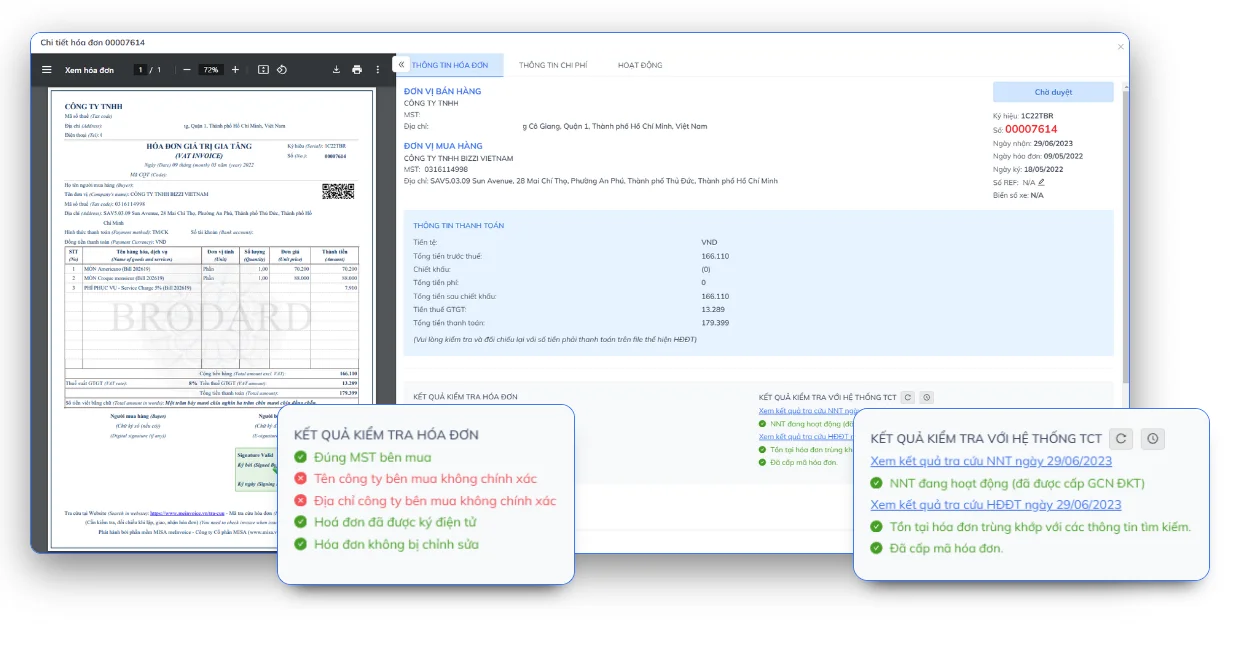
The search results should be read in their entirety. system status and data match. The fact that the system finds the invoice does not mean users can skip checking the seller, buyer, amount, tax, and adjustment or replacement status.
| Result or situation | Meaning | What needs to be done next? |
| The system found the invoice. | There is data that matches the search criteria. | Check the seller, buyer, date, amount, and status. |
| No invoice found. | No match found with the input data. | Double-check the data, release date, and verify with the seller. |
| The invoice has been assigned a code. | The invoice has a tax authority code. | Check the current content and status. |
| The tax authorities have received invoice data without codes. | Invoice data has been transferred to the system according to the applicable procedure. | Compare the information and check the relevant status. |
| Adjustment or replacement invoice | There are transactions that occur after the initial invoice. | Check the relationship with the original invoice. |
| The system data is different from the version the user receives. | There may be data discrepancies or incorrect information entered. | Do not use immediately; verify with the seller. |
Do not misinterpret the search results.
It is not advisable to draw conclusions:
- “"Upon verification, the invoice was found to be completely valid."”
- “"Having a tax authority code guarantees you'll be eligible for the tax deduction."”
- “"Not found means the invoice is fake."”
A more appropriate interpretation is: While the lookup results are an important verification step, businesses still need to check the invoice content, status, and related documents based on actual business practices.
Common errors when looking up invoices and how to resolve them.
Common mistakes when Look up electronic invoices from the General Department of Taxation. This includes incorrect symbol entry, incorrect invoice number, wrong total payment amount, incorrect captcha entry, not logged in, or corrupted XML file. Users should check each data field individually before concluding that the invoice does not exist in the system.
| Error | Common causes | How to handle it |
| No invoice found. | Incorrect symbols, invoice numbers, total amounts, or data not yet recorded by the system. | Double-check each field of information and confirm with the seller. |
| Incorrect verification code/captcha | Incorrect character entered or code has expired. | Refresh the verification code and re-enter it. |
| Incorrect invoice symbol | Missing characters or confusion between symbols and numbers. | Copy the exact string of symbols on the invoice. |
| Invoice error | Entering the wrong number or adding characters not on the invoice. | Compare it with the PDF or XML file. |
| Incorrect total amount | Enter the amount before tax or enter an incorrect amount format. | Use the correct total payment amount as required by the system. |
| Unable to view the list of purchase/sales invoices. | Not logged in or account does not have sufficient access permissions. | Double-check your account, password, and access permissions. |
| Unable to log in. | Incorrect password, captcha, or login session error. | Re-enter your information, try a different browser, or follow the account support process if needed. |
| Unable to read XML file | Incorrect file selected, file modified, or incomplete download. | Reload and use the original XML file. |
| The information on the system does not match. | Incorrect data entered or seller information provided differs from the invoice representation. | Temporarily stop using the invoice and verify it with the seller. |
| The system is slow or unresponsive. | Connection error or system experiencing high traffic. | Try again later, avoid sending the request repeatedly. |
3-Step Process for Troubleshooting Search Errors
When the search results are not as expected, users can proceed in the following order:
Step 1: Verify the input data
Verify the symbols, invoice numbers, total payment amount, confirmation code, and other information as required by the system. It is especially important to correctly distinguish between them. invoice symbol with invoice template, This also helps avoid confusing the total payment amount with the price of goods before tax.
Step 2: Check the file and release time.
If searching using an XML file, ensure you are using the original data file and that it has been fully loaded. For invoices that have just been issued or whose data has not yet been recorded in the system, the search results may not appear immediately. In this case, recheck according to the applicable procedure instead of hastily concluding that the invoice does not exist.
Step 3: Contact the seller if the data still doesn't appear or doesn't match.
If, after double-checking the information, the invoice is still not found or the data in the system differs from the invoice currently stored, the business should contact the seller to verify the issuance status and the data sent. In case of discrepancies, the use of the invoice should be temporarily suspended until the cause is identified and appropriate action can be taken.
Note: Not finding an invoice in a single search does not necessarily mean the invoice is fake. The results should be evaluated in conjunction with the invoice information, issuance date, data status, and related documents.
The next case that is easily confusing is Invoice without a tax authority code Or the invoice may have just been issued but not yet displayed in the system. In that case, the verification method needs to be based on the specific invoice type and applicable data flow, rather than using the same lookup method for all cases.
Why hasn't the invoice appeared in the system?
An invoice not appearing in the system could be due to incorrect data entry, the invoice being recently issued, the data not yet being accepted by the system, or the seller not having completed the relevant data transfer. Therefore, one should not conclude that an invoice is fake based on a single unsuccessful search.
First, users need to distinguish between some common cases:
- Electronic invoice with tax authority code: The invoice is assigned a code before the seller sends it to the buyer, according to the applicable procedure.
- Electronic invoices without tax authority codes: The invoice is issued and the data is transferred by the seller to the tax authorities according to the corresponding procedure.
- Electronic invoices generated from cash registers: Each system has its own data flow and processing state.
When Look up electronic invoices from the General Department of Taxation. If there are no results, the business can check the following in order:
- Double-check the invoice symbols: Make sure you don't miss or enter the wrong characters.
- Check the invoice number: Compare it precisely with the original representation or XML file.
- Check the total payment amount: Not to be confused with the price of goods before tax or the total price excluding tax.
- Check the invoice date and information: Make sure you are looking up the correct invoice that needs verification.
- Verify that the file or representation is correct: If using XML files, ensure that they are original data files provided by the seller or the issuing system.
- Contact the seller: Request confirmation of invoice issuance status and data transfer.
- Look it up again later: If the invoice has just been generated, it may need to be checked again after the data is received by the system.
A fixed update timeframe should not be applied to all cases without formal justification that aligns with the specific invoice type and issuance process. The absence of data at the time of inquiry is merely an indication requiring further verification.
Special, Searching for electronic invoices without a tax authority code. It needs to be considered according to the correct procedures applicable to the type of invoice and the seller. Similarly, invoices from cash registers may also have their own data flow, so it should not be assumed that all invoice types have the same display or status in the system.
Note: Not finding the invoice in the system after one search does not necessarily mean the invoice is fake. Double-check the data entry, issuance date, data transfer status, and verify with the seller before drawing any conclusions.
Even if look up tax invoices Even if successful, businesses still need to further verify the content and related documents before accounting, making payments, or filing declarations.
What should be checked after reviewing input invoices?
After conducting a search, businesses should verify the status, seller and buyer information, amount, tax, XML/PDF file, and its conformity with the purchase documents. Look up electronic input invoices This is just one step in the invoice control process.
A checklist might include:
- Can the invoice be found by the system?
- What is the current status of the invoice?
- Will the invoice be adjusted, replaced, or canceled?
- Are the seller's name and tax identification number correct?
- Are the buyer's name and tax identification number correct?
- Do the invoice symbol, number, and date match the business documents currently on file?
- Are the total amount, tax rate, and tax amount correct?
- Do the terms and conditions of the goods or services match the actual transaction?
- Does the business have all the necessary XML and PDF files or presentations?
- Does the invoice match the contract, quotation, or purchase order?
- Does the invoice match the delivery note, warehouse receipt, or acceptance report?
- Has the invoice been approved through the internal process?
- Are there any signs of duplicate invoices or payments being recorded?
Checklist for verifying input invoices after checking.
| Category | Questions to be checked | Purpose |
| Invoice status | What is the status of the invoice? Has it been adjusted, replaced, or canceled? | Determine the current status of the invoice. |
| Seller | Are the name and tax identification number correct? | Compare with actual partners |
| Buyer | Is the company information accurate? | Minimize inaccurate legal entity information. |
| Invoice value | Do the product price, tax rate, tax amount, and total payment match? | Check financial data |
| Data file | Is XML the original file? | Ensure you have the necessary electronic data. |
| Actual transaction | Do goods/services actually come into being? | Control the appropriateness of costs. |
| Related documents | Is there a contract, purchase order, delivery note, or acceptance certificate? | Compare with the purchase transaction. |
| Internal procedures | Has it been approved yet? | Pre-accounting/payment control |
| Pay | Are there any signs of duplicate transactions? | Reduce the risk of duplicate payments. |
Therefore, Look up electronic purchase invoices It shouldn't be considered the final step. For businesses, the lookup results need to be linked to the process of receiving invoices, checking documents, approving expenses, accounting, and payment.
With a small number of invoices, accountants can perform checks using a checklist. However, as the number of invoices and documents increases, manually searching and comparing each invoice can create a significant workload.
In that case, businesses can consider automated tools for collecting, reading, and reconciling invoice data. Modern AP Automation solutions can support invoice data processing, reconciliation with purchase orders and warehouse receipts, thereby reducing reliance on manually opening and checking each file.
In addition to direct lookup on the tax authority's system, invoicing software can also help users find, read, and manage invoices more conveniently.
Look up invoices through electronic invoicing software.
Invoicing software is suitable when users have links in emails, lookup codes, XML files, or need to manage a list of received invoices. The interface of each software may differ, but they typically support searching, reading data, downloading files, and storing invoices.
However, searching through the issuer's software should be considered a supporting method for reopening and managing invoices. When verification is required based on tax authority data, businesses still need to perform appropriate checks on the official system and compare them with relevant documents.
Methods for looking up invoices through software.
| How to search | Required data | When appropriate | Note |
| Link in email | Email to receive invoice | We need to quickly open the invoice sent by the seller. | Check the sender and domain name before accessing. |
| Lookup code | Code in email or manifest | No more direct links | Access the correct release system. |
| XML file | Original data file | The invoice details need to be read carefully. | Do not edit the XML file. |
| Email or phone number | Recipient information | Retrieving invoice lists on various software programs. | Depends on the system's functionality. |
| Business account | Software account | Centralized invoice management | Depending on scope and access rights |
When should you use software to look things up?
This method can be useful when businesses:
- We need to reopen the invoice that was sent via email.
- I have an XML file and want to read the invoice data.
- Multiple invoices need to be stored centrally.
- I want to find an invoice based on the recipient's information.
- We need to manage the list of received invoices in a system.
However, not all software offers the same level of support. Businesses need to check the functionality, access rights, and data sources of each system before using it.
More importantly, Invoice lookup software should not be understood as a complete substitute for checking invoice data, status, and related documents.. The results from the software still need to be compared with actual business operations when the company performs accounting, payments, or declarations.
When looking up invoices goes beyond individual invoices and becomes a repetitive daily task, businesses should consider automating the entire incoming invoice processing workflow.
When should businesses automate the lookup of input invoices?
Manual lookup is suitable for checking individual invoices. But when businesses receive hundreds or thousands of invoices each month, the problem is no longer just "how to look up an invoice," but how to manage the entire flow of incoming invoice data.
Here are some signs that indicate a business should consider automation:
- The accountant had to manually download and open each invoice.
- The invoices come from multiple suppliers and various channels.
- Invoice data is scattered across emails, folders, and software.
- Employees must re-enter the invoice information into Excel or accounting software.
- Comparing invoices with purchase orders and warehouse receipts is time-consuming.
- It is difficult to detect duplicate invoices or duplicate payment transactions.
- There is no dashboard to track the status of invoice processing.
- Finance needed several days to complete the end-of-period reconciliation.
From invoice lookup to AP Automation control.
A modern processing procedure can be scaled from:
Receive invoice → Collect data → Read XML/PDF → Verify information → Compare PO/GR → Approve → Record accounts payable → Make payment → Archive and report.
Specifically, AI, OCR, RPA, and XML Parsing technologies can support the collection, extraction, and standardization of invoice data. AP Automation can also be extended to 3D reconciliation between parties. Invoice – Purchase Order – Goods Receipt, This helps businesses reduce manual data entry and detect discrepancies before payment.
Bizzi helps businesses transition from manual invoice lookup to centralized invoice processing.
For businesses with a large volume of incoming invoices, Bizzi can be used as an automation layer in the AP process, supporting invoice data collection and processing, information verification, reconciliation with purchasing data, and reducing repetitive manual operations.
According to Bizzi's solution documentation, AP Automation is geared towards addressing bottlenecks such as manual data entry, invoice-PO-GR reconciliation, fragmented expense approvals, and inconsistent payments. The solution combines AI and RPA to automatically collect and extract invoice data and support 3D reconciliation.
This helps businesses shift from “"Find individual invoices when needed"” to a more proactive process:
- Collect invoices from relevant sources.
- Standardize invoice data.
- Verify the input information.
- Compare with the purchase order and warehouse receipt when data is available.
- Detect discrepancies or exceptions.
- Move the file to the correct approval step.
- Track processing and payment status.
- Data is stored for auditing and reporting purposes.
Bizzi does not replace the requirement for businesses to check documents and fulfill their current accounting and tax obligations. The value of automation lies in reducing repetitive tasks, centralizing data, and allowing the finance team to dedicate more time to exceptional cases and control decisions.
Frequently Asked Questions about Checking Electronic Invoices with the General Department of Taxation
1. Where can I look up electronic invoices from the General Department of Taxation?
Users should access The tax authority's electronic invoicing system is available at hoadondientu.gdt.gov.vn To perform a lookup, please double-check the domain name before entering invoice or business account information. gdt.gov.vn This aims to reduce the risk of accidentally accessing fake websites.
Depending on their needs, users can quickly look up an invoice without logging in, or log in to their business account to view a list of purchase and sales invoices and filter data according to system-supported criteria.
2. Is it possible to look up electronic invoices without logging in?
Have. Users can use the quick lookup function and enter the information requested by the system, such as invoice type, symbol, invoice number, total payment amount, and confirmation code.
This method is suitable for quickly checking a specific invoice. However, it's not ideal if the business needs to look up a list of invoices. electronic purchase invoices, For sales invoices or filtering data by time and status, logging into a business account would be more appropriate.
3. How can I look up my electronic input invoices?
To Look up electronic input invoices, Businesses can log into the electronic invoicing system at hoadondientu.gdt.gov.vn, Access the invoice lookup area and select the purchase invoice lookup function.
Next, the business sets the appropriate time period and filtering conditions, selects the search, and checks the list of results. When opening each invoice, the accountant should further verify the information regarding the seller, buyer, date, amount, tax, and invoice status.
4. Why can't I find my electronic invoice when I search?
There are several reasons why an invoice might not appear in the search results, such as:
- Incorrect invoice symbol entered.
- Incorrect invoice number entered.
- Incorrect total payment amount entered.
- The invoice has just been issued.
- The data has not been received or recorded by the system according to the applicable procedure.
- The information retrieved does not match the invoice data.
When encountering this situation, users should double-check all information, verify the invoice, and communicate with the seller about the data delivery status. One should not conclude that an invoice is fake based on a single unsuccessful verification.
5. Are invoices with tax authority codes guaranteed to be valid?
One should not draw such a conclusion based solely on the fact that the invoice has a tax authority code. The tax authority code is important verification information, but businesses still need to check it further:
- Seller information and tax identification number.
- Buyer information.
- Invoice symbols and numbers.
- Invoice date.
- The value of goods and services.
- Tax rates and tax amounts.
- The current status of the invoice.
- The relevant documents and actual transactions.
Result Look up electronic invoices with tax authority codes. It should be considered one step in the verification process, not the sole basis for concluding on the entire accounting or declaration process.
6. What is an XML electronic invoice file used for?
XML is a structured data file containing the information fields of an electronic invoice, enabling systems and software to read, process, and compare the data.
Businesses should:
- Preserve the original XML file.
- Save a PDF version for easy viewing and comparison.
- Do not modify the content of the XML file without authorization.
- Do not convert PDF to XML and then treat it as the original data file.
- If the XML file is corrupted, request the seller or publisher to provide the original file again.
When look up electronic invoice, Checking XML files helps businesses compare structured data with the representation of invoices and related documents.
7. Is it possible to search multiple electronic input invoices?
Businesses can log into the system to search for a list of purchase invoices based on a time period and the filtering conditions supported by the system.
However, if a business has a large number of input invoices and needs to perform additional tasks such as:
- Collect invoices from multiple sources.
- Read XML data.
- Check the invoice information.
- Compare with the purchase order (PO), contract, or purchase document.
- Track the approval status.
- Check for duplicate payments.
Therefore, performing the entire process manually can create a significant workload for accountants. In this case, businesses may consider using software to automate the process of handling incoming invoices.
8. Can software be used instead of the tax authority's online lookup portal?
The software can help businesses collect, read, store, search, and reconcile invoices more conveniently. This is a suitable option when businesses need to process a large number of invoices or want to connect invoice data with their purchasing, payment, and accounting processes.
However, businesses still need to clearly define the purpose of the audit. When verifying the official status on the tax authority's system, businesses should use data from the system relevant to the business being audited.
In other words, the software can help. Automating and centralizing the invoice processing workflow., However, it should not be assumed that all software completely replaces verification on the tax authority's system.
9. How does Bizzi assist with verifying input invoices?
For businesses with a large number of invoices, searching for each invoice in the system and then manually entering, checking, and cross-referencing the data can significantly increase the workload of the accounting department.
Bizzi It helps businesses automate the collection, reading, and processing of incoming invoice data, while connecting invoice data with cost control, documentation, and approval processes.
As a result, businesses can shift from simply look up tax invoices Alternatively, you could move from checking each invoice individually to a more centralized management process, where invoice data can be used for subsequent steps such as:
- Check the invoice information.
- Compare with the relevant documents.
- Control the approval process.
- Monitor processing status.
- Support in controlling costs and accounts payable.
The most suitable solution will depend on the number of invoices, data sources, accounting processes, and the systems the business is using.
10. If the invoice is found, does that mean it can be declared immediately?
One should not draw conclusions based solely on the fact that the system found the invoice. After conducting a search, businesses still need to verify the invoice information, current status, actual economic transactions, and applicable conditions for accounting or declaration purposes.
Businesses should continue to compare:
- Seller and buyer information.
- Content of goods and services.
- Value and tax on the invoice.
- Invoice status.
- Relate this to any adjustment or replacement invoices.
- Contracts, purchase orders, delivery or acceptance records.
- Payment documents and related internal records.
So, Checking incoming electronic invoices is an important verification step, but it's not the entire invoice control process for a business..
Conclude
Look up electronic invoices from the General Department of Taxation. This is a crucial step for businesses to verify invoice data, check status, and cross-check information before processing documents. Depending on their needs, users can perform quick searches without logging in, log in to view a list of purchase/sales invoices, or check data from XML files.
However, Checking input invoices does not mean the invoice control process is complete.. Businesses still need to verify the seller's information, buyer's details, value, taxes, adjustment/replacement status, data files, and their conformity with the actual transaction.
For businesses with few invoices, a manual verification process may suffice. However, as the number of invoices increases, searching, downloading files, entering data, and cross-referencing each invoice will place a significant burden on the accounting department.
In that case, businesses can start by standardizing the invoice receiving process, then apply automation solutions to collect, read, verify, and reconcile data. With its AP Automation approach, Bizzi helps businesses transition from a fragmented invoice processing process to a more centralized one, connecting invoice data with purchase orders, warehouse receipts, approvals, and payments.
The ultimate goal is not just that Faster invoice lookup, Instead, it involves building a data-driven, reconciled, and traceable process for controlling incoming invoices. Businesses can start by assessing the number of invoices, processing time, discrepancy rate, and current control points to determine the suitability of an AP automation solution.
Register here to receive consultation and experience solutions from Bizzi: https://bizzi.vn/dat-lich-demo/
Download Government Decree No. 254/2026/ND-CP here This