


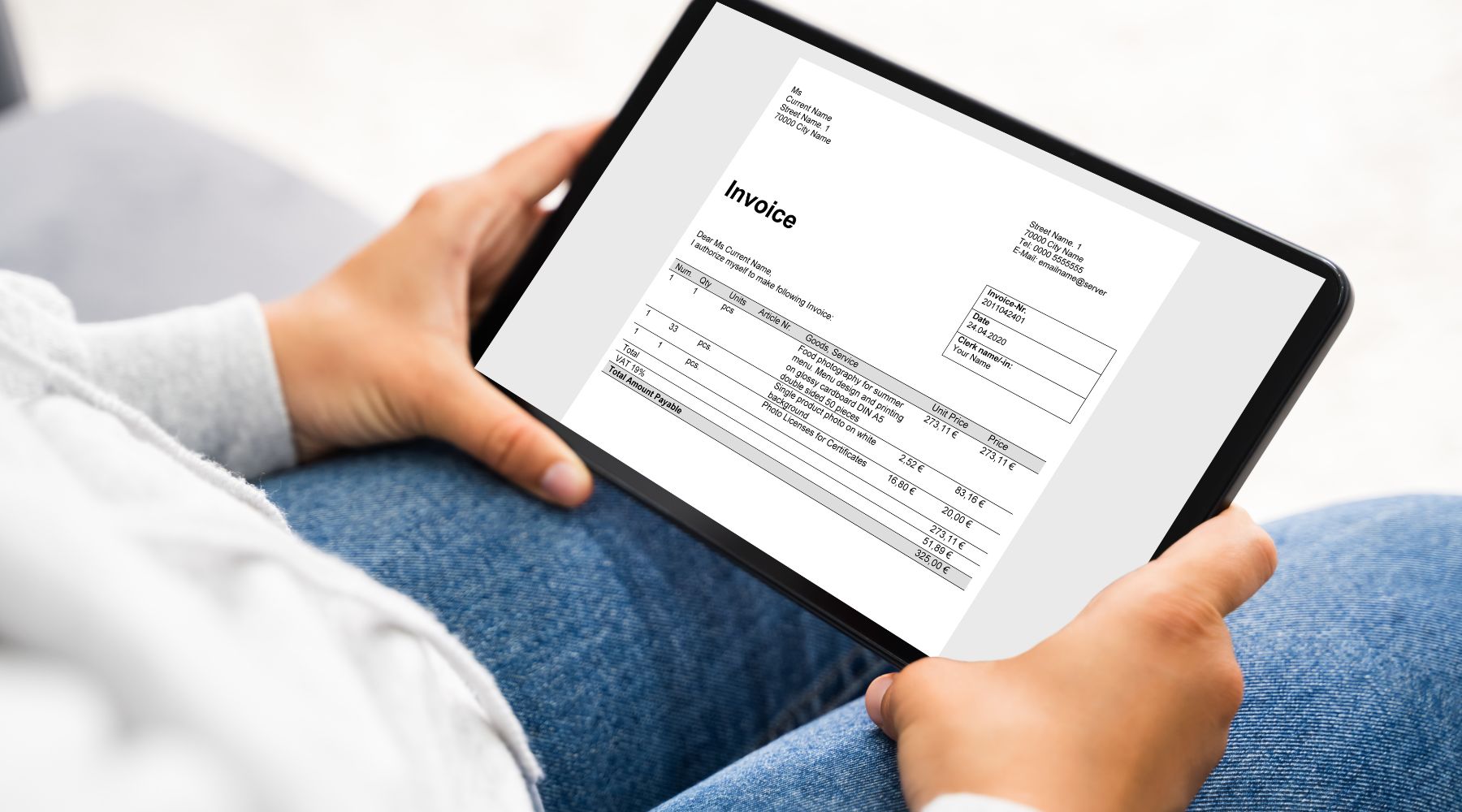
To download electronic invoices from the Tax Portal, accountants log in at hoadondientu.gdt.gov.vn, enter Lookup → Invoice Lookup, Select either a purchase or sales invoice, then find the document you need to download. If necessary... XML, Use the XML export function, if necessary. PDF to view or save the file, Open the presentation and print/save it as a PDF. If you need the exact PDF released by the vendor, retrieve it from their email or online portal.
How to download XML and PDF electronic invoices from the Tax Portal
For businesses that already have an account, the easiest way to monitor is to directly search the Tax Department's Electronic Invoice System. The Tax Department's 2026 guidelines confirm the workflow includes logging in, going to the Invoice Lookup section, selecting purchase/sales invoices, entering search criteria, and then viewing the desired results.
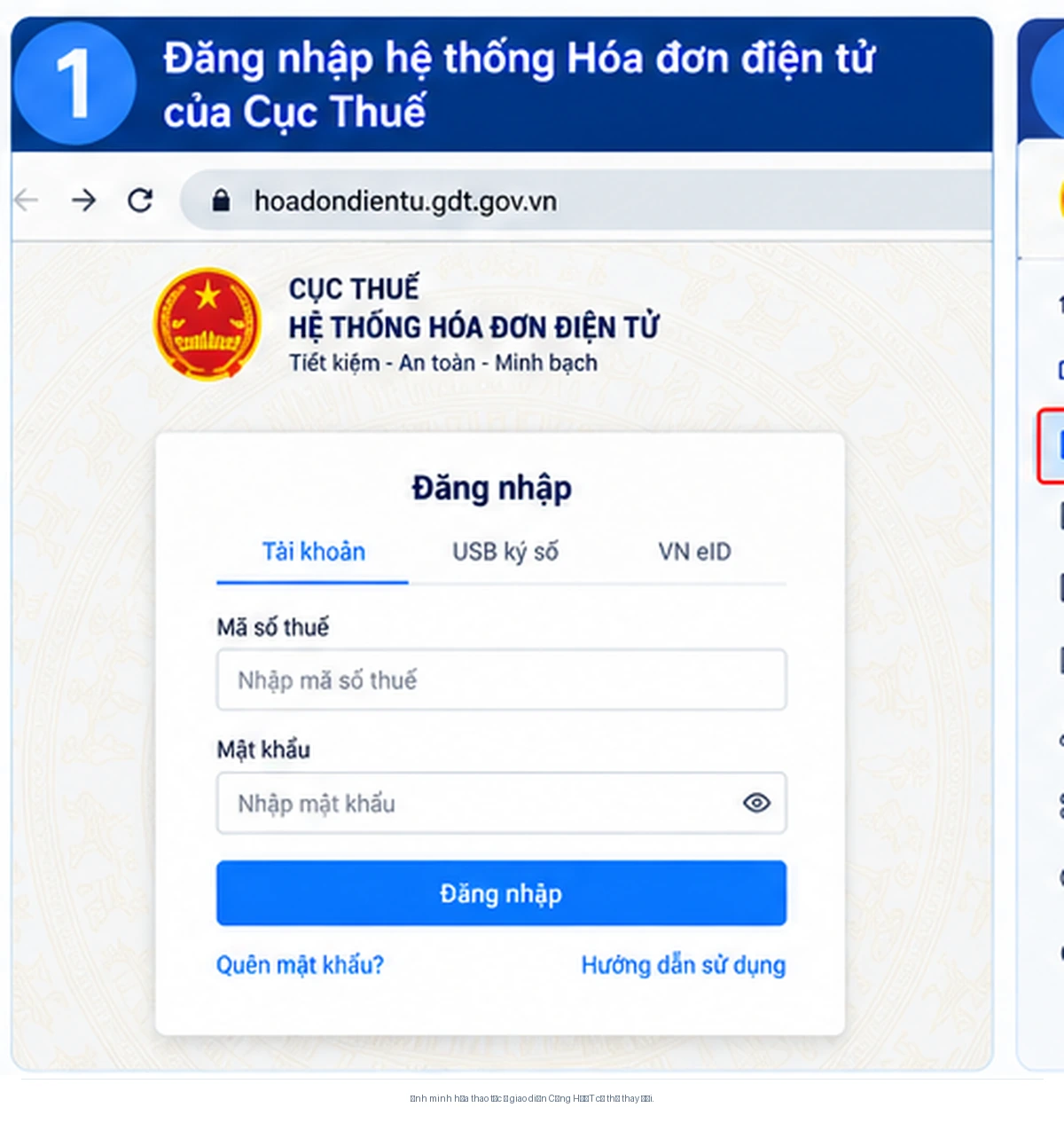
Step 1: Log in to the Electronic Invoice System
Access https://hoadondientu.gdt.gov.vn/ and log in using the account issued by the tax authority. If only a specific invoice needs to be searched and sufficient information is available, the system also has a search flow that does not require login; however, to view the list of purchase/sales invoices and perform data export functions, businesses need to log in.
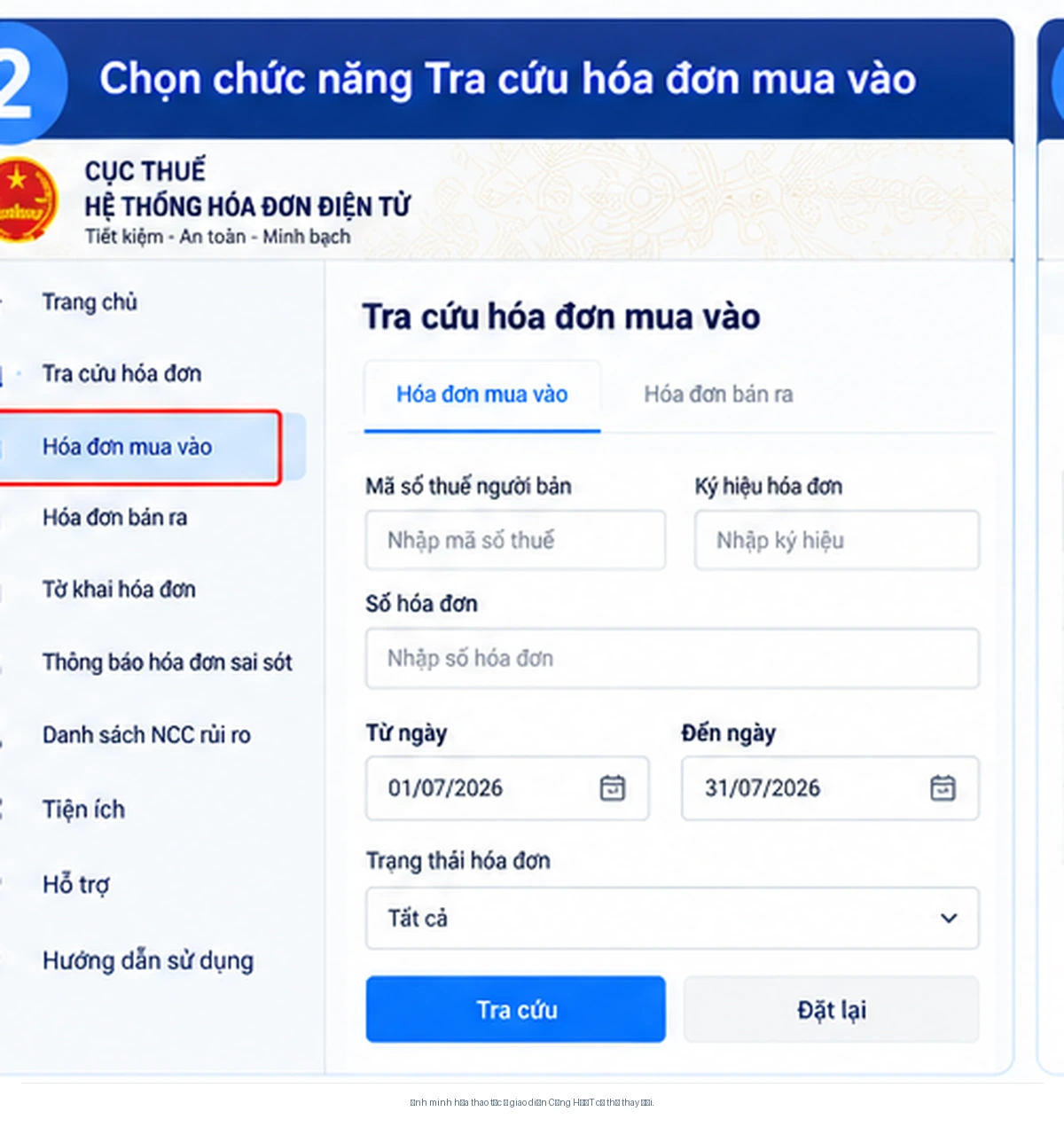
Step 2: Select either a purchase or sales invoice.
After logging in, go to Lookup → Invoice Lookup. Here, select the correct group. purchase invoice or sales invoice According to needs. For accounts payable accountants, the purchase invoice section is usually the most frequently searched area.
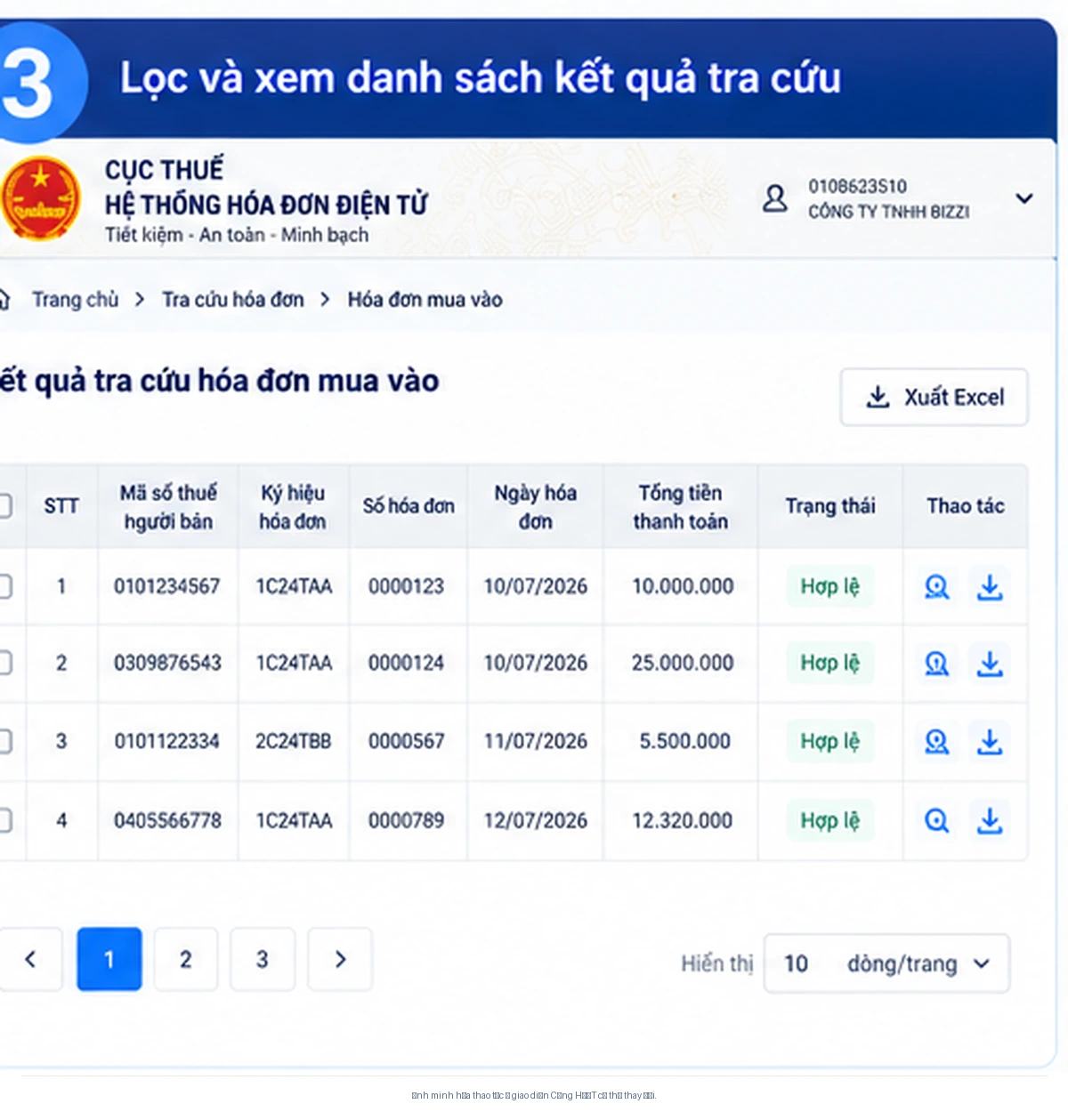
Step 3: Filter and find the invoice you need to download.
Enter the necessary criteria such as date range, seller's tax code, symbol, invoice number, or invoice status. You don't need to fill in all fields unless the system requires it; start with the date range and status, then narrow it down if the list of results is too long.
Step 4: Export the XML file
On the results screen or when opening the invoice details, select the function. Export XML or the corresponding load/export icon if the account interface is currently displayed. The XML file contains invoice data in a machine-readable structure and is an important format for data verification, software import, or automatic reconciliation.
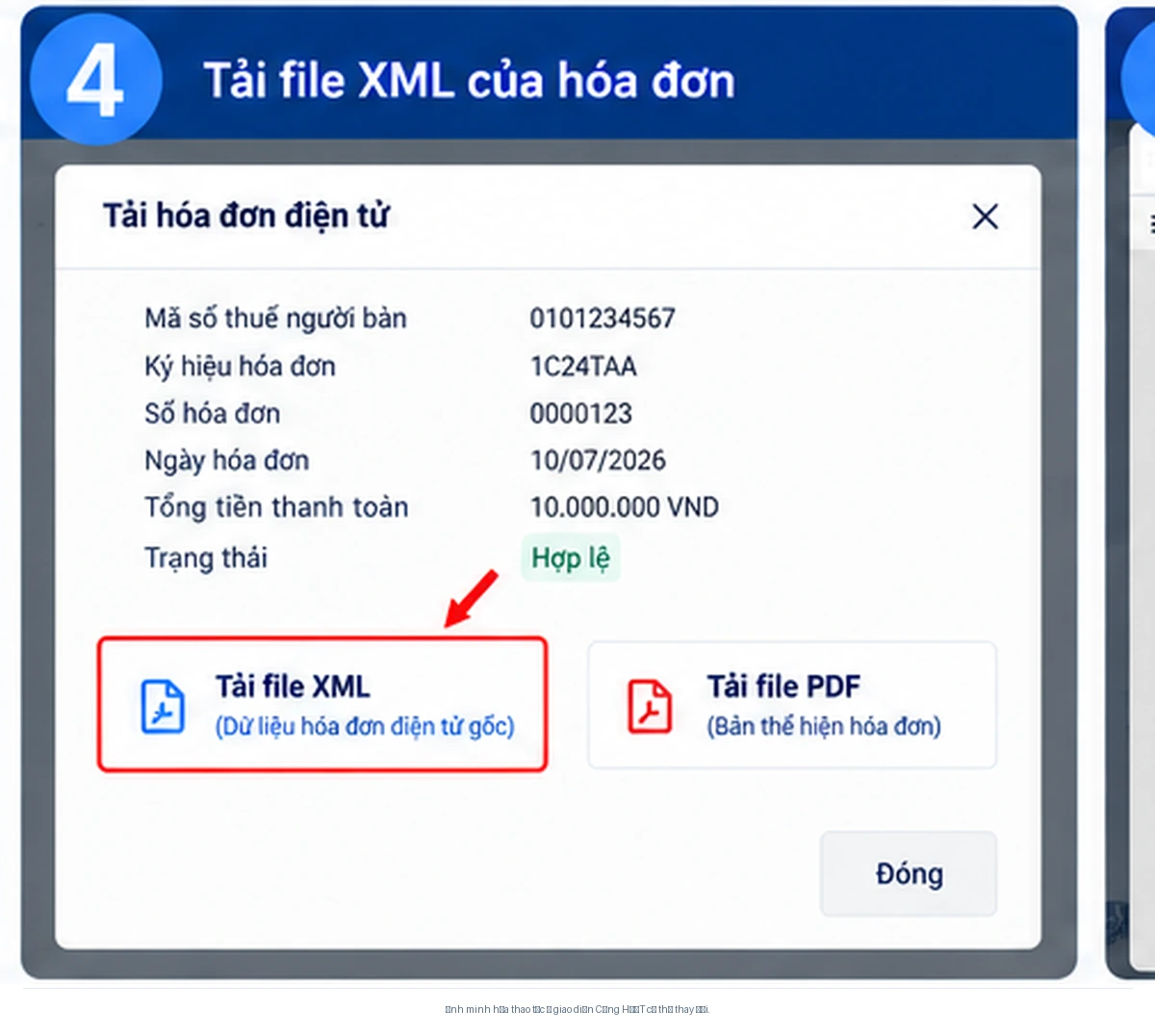
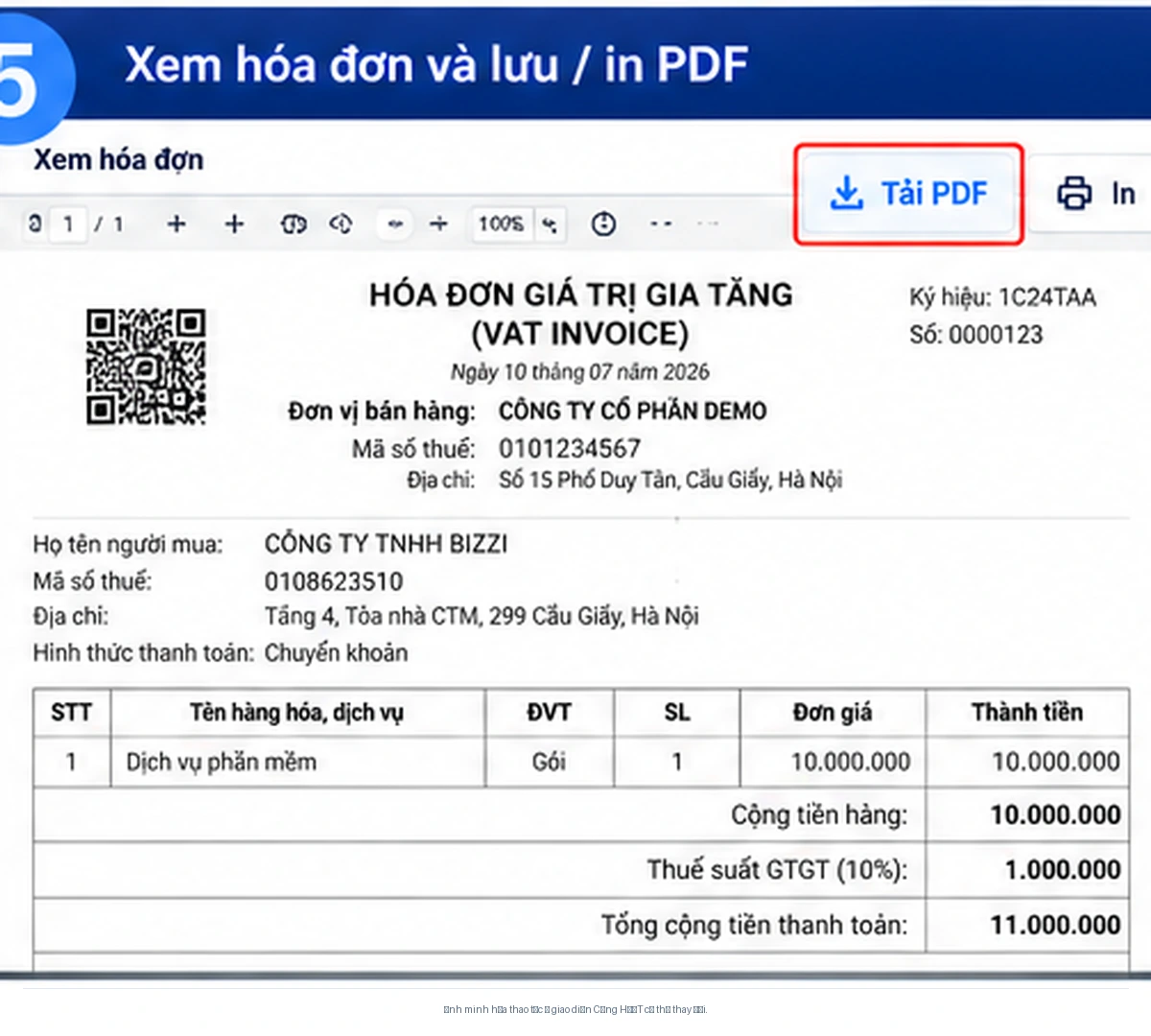
Step 5: View, print, or save the PDF
The current guidelines of the Tax Department record the functions. View / Print / Export to Excel / Export to XML. If the interface does not have a separate “Download PDF” button, open the section View the invoice, select Print and use the function Save as PDF of the browser or operating system.
This PDF needs to be distinguished from PDF released by the provider.. PDFs from the vendor may contain presentation templates, logos, or display information specific to the publishing system; if a business needs that specific version for internal verification, it should download it from the vendor's email or lookup portal.
If you need to review further changes to electronic invoices effective from July 1, 2026, please see the article. Decree 254 & Circular 91: What updates do businesses need to make?.
What is the difference between XML and PDF electronic invoice files?
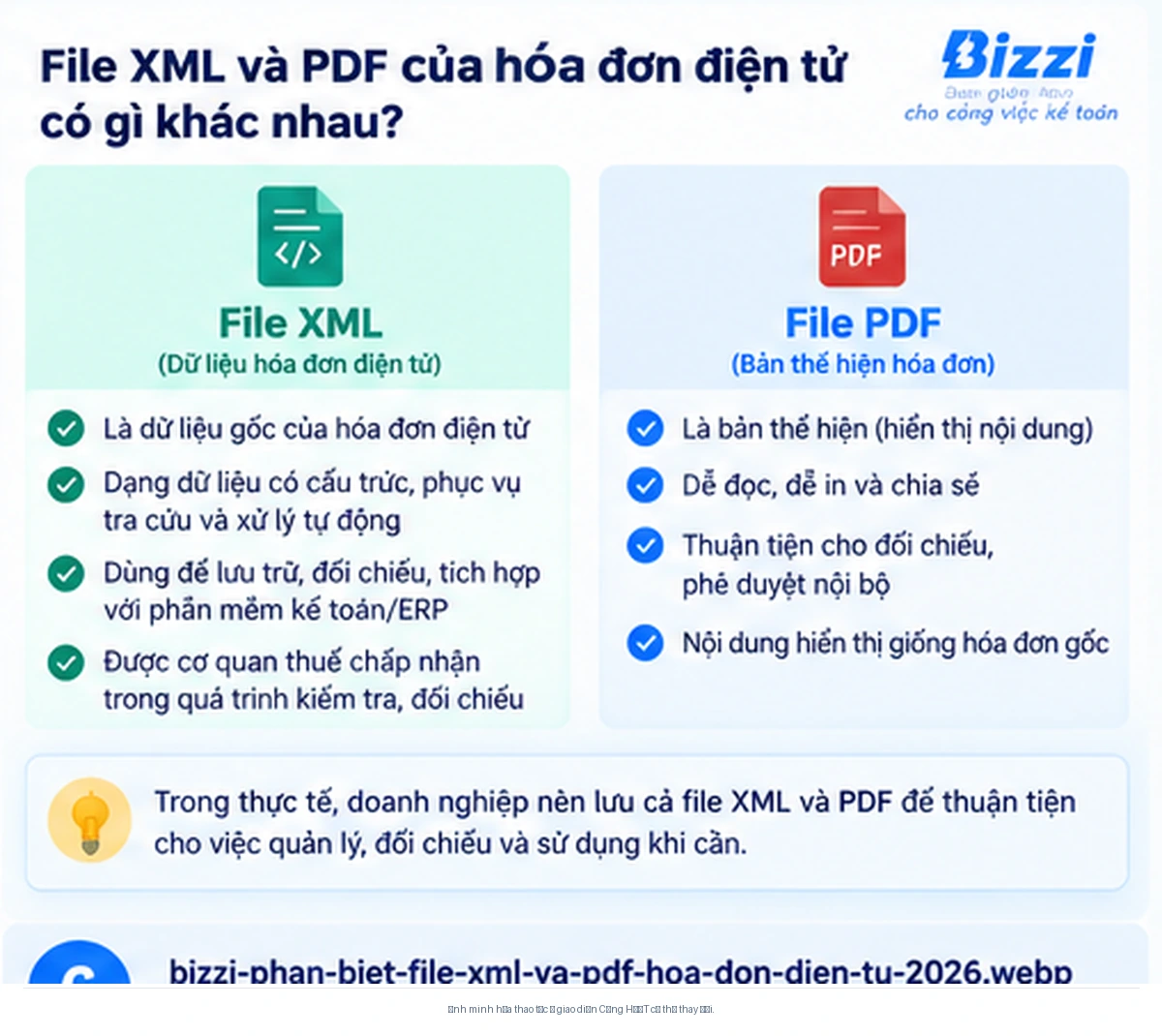
XML and PDF serve two different needs. XML is structured data that systems can read and process.; still PDF is a convenient format for accountants to view, print, and share.. Therefore, there's no need to rank "which file has higher legal validity"; what's important is that businesses maintain their electronic invoice data properly and use the correct format for each task.
| Criteria | XML | PDF / representation |
|---|---|---|
| Nature | The invoice data is structured to be suitable for software to read and process. | A visual representation for users to view, print, and share. |
| When should it be used? | Checking data, entering data into the system, reconciliation, and integration with accounting/ERP software. | Quickly review the content, get internal approval, print, or send it to those who need to read it. |
| Retrieved from the Tax Portal | It has an XML export function according to current guidelines. | It can be viewed/printed; if there is no dedicated PDF download button, the presentation can be saved as a PDF. |
| Obtain from the supplier | It can be sent via email or downloaded from the vendor's lookup portal. | Typically sent via email or a lookup portal; the vendor's display template may be retained. |
How to download invoices from email or the supplier's lookup portal.
Besides the Tax Department's Electronic Invoice Portal, accountants usually receive invoices via email notification of issuance or a lookup link from the electronic invoice service provider. The practical method is to open the email from the seller, check the correct domain/sender, access the lookup link, enter the lookup code if requested, and then download the XML and PDF files provided by the system.
Download the file directly, then compare the invoice number, date, seller, and amount with the actual transaction.
Open the correct domain name of the publisher, enter the lookup code, and then download the permitted system files.
Use your customer code, order number, or verification information as instructed by the seller to retrieve your invoice.
Do not download files from a suspicious link just because the filename resembles an invoice. If the email address is unusual or the domain name is unfamiliar, verify with the provider before downloading and opening the file.
How to download electronic invoices in bulk
If you need to process many invoices, first filter the list by period and then check the data export functions available on your account. The e-invoice portal supports searching, viewing, printing, exporting to Excel and exporting to XML, but you shouldn't assume that all accounts have the same "bulk XML/PDF download" button.
- Filter by the correct time range. Divide the list by month or a sufficiently long period to make it easy to manage.
- Export the list first. If the interface supports exporting to Excel, use this list to find out the total number of invoices to collect.
- Download/export files according to your current account's functionality. Do not rely on outdated guidance if the button names or workflows have changed.
- Compare the quantities after downloading. Compare the number of files received with the invoice list to detect any missing files.
If the business needs go beyond simply downloading files, it also requires... Look up, check, and track multiple input invoices within the same period., see further instructions Look up individual and batch electronic input invoices.. This page is intended as a sub-reading branch for the lookup function and does not replace the XML/PDF download instructions in the current article.
How to obtain the original PDF from the supplier.
If the goal is to obtain the exact PDF version released by the provider, that is the priority. Invoice issuance email or the supplier's own lookup portal. The PDF saved from the Print function on the Tax Portal can be used for viewing and record-keeping, but it is not necessarily an exact match to the PDF template generated by the seller's system.
Short process:
- Find the invoice email by supplier name or invoice number.
- Open the lookup link and verify that the domain name is correct.
- Enter the lookup code if prompted by the system.
- Downloading PDF and XML files is permitted by the provider.
- Compare the invoice number, date, and total amount with the data on the Tax Portal if necessary.
Unable to load XML/PDF: troubleshoot on a case-by-case basis.
When you are unable to load the invoice, first identify where the error lies. Search process, access rights, XML files, or how to obtain PDFs.. It's not advisable to handle every situation by asking the seller to "resend the invoice.".
| Situation | How to check |
|---|---|
| No invoice found in the results. | Check the buy/sell orders, date range, status, and seller information; then search again with fewer conditions. |
| The XML download button is not visible. | Open the invoice details and look for the Export XML function or the export/download icon. If the interface differs from the illustration, prioritize the function name displayed on the actual account. |
| The PDF button is not visible. | Open the invoice → Print → Save as PDF. If you need a PDF in the supplier's exact format, refer back to the seller's email/link for verification. |
| XML opens up the full code. | This is usually not an error. XML is structured data; use the XML reader function on the e-invoice portal or suitable XML reader software to view it as an invoice. |
| The downloaded file is corrupted or missing data. | Re-download from the source/reference, check file size, and cross-check invoice information before use. |
| Only the vendor's PDF is available. | Look up the invoice on the Tax Portal and check if it's possible to export XML; if a file from the seller's system is needed, contact the supplier or use the published lookup link. |
After downloading, how should I save the electronic invoice?
Decree 254/2026/ND-CP requires that invoices and supporting documents be preserved and stored securely. safe, secure, intact, complete, not altered or corrupted. During the storage period, electronic invoices are stored as data messages and must be readily available for retrieval or printing upon request.
- Keep electronic data in a place with clearly defined access permissions.
- Do not modify the XML content after downloading.
- If you have both XML and PDF files, save them in the same identifier or folder for easy reference.
- Establish consistent file and folder naming conventions based on period, vendor, or invoice number.
- There are backup and recovery mechanisms that are appropriate for the company's system.
- Don't let your personal email address be the only place to store your invoices.
The retention period should be determined by accounting regulations and the specific type of document; it should not be shortened to "all electronic invoices must be downloaded as XML files and kept in a single, specific way.".
Frequently asked questions
Is downloading invoices from the Tax Portal guaranteed to be valid?
No. While the ability to look up and download the data shows that the invoice is available in the system at the time of verification, accountants still need to review the invoice status, XML content, and compare it with related transactions/documents before deciding whether to record, declare, or pay for it.
Is it possible to look up invoices without logging in?
A specific invoice can be searched if all the required information is provided. To view the purchase/sales list and use the data export functions of the business account, login is required.
Is it necessary to install the HDDT Plugin just to download invoices?
The Tax Department's 2026 lookup guide does not list plugin installation as a mandatory requirement for the login → lookup → view/export invoice flow. Some digital signature operations or other functions may require separate support components, so follow the system's direct notifications when necessary.
Is an XML file considered the "original invoice"?
In practice, many people refer to XML as the "original file" because it is the structured data file of the invoice. However, from a legal perspective, electronic invoices exist as data messages; the concept of "paper original" should not be applied to electronic invoices.
Is it possible to create a PDF from an XML file?
An XML reading system or software can be used to display the data as an invoice, which can then be printed/saved as a PDF. This PDF is for viewing and saving the representation; the electronic data must be preserved and the XML content should not be modified.